Spledio
See your audio. Fix just the part that's wrong.
Spledio shows your audio as a picture of its sound (a spectrogram). Select one sound in that picture, such as a cough, a ringing note or a hum, and turn it down, up or off without touching the rest.
Everything runs on your Mac: no account, no uploads, no internet connection. Your original file is never changed.
macOS
Version 1.3 · macOS 15 or later · Apple silicon · Signed with Developer ID and notarized by Apple.

How it works
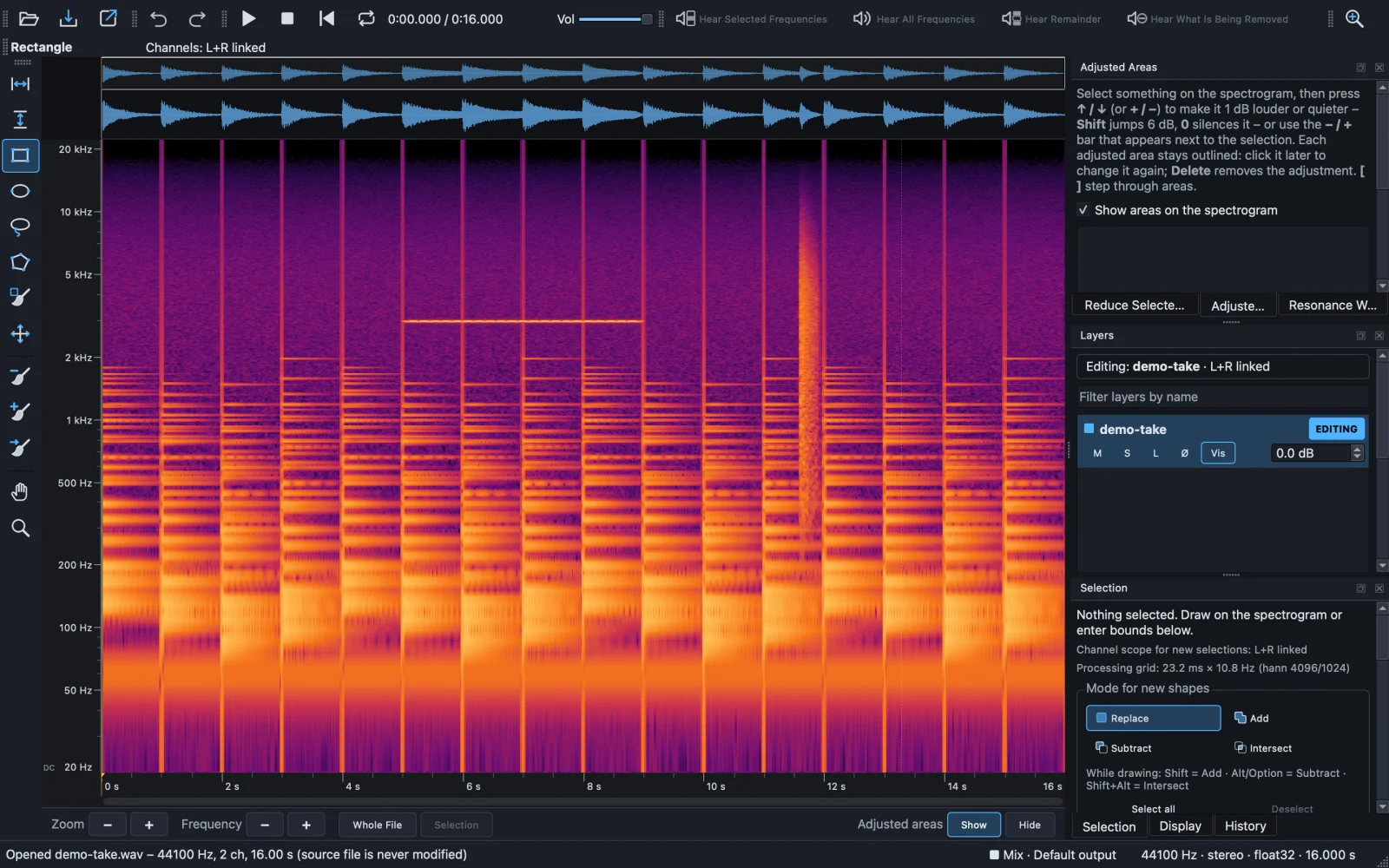
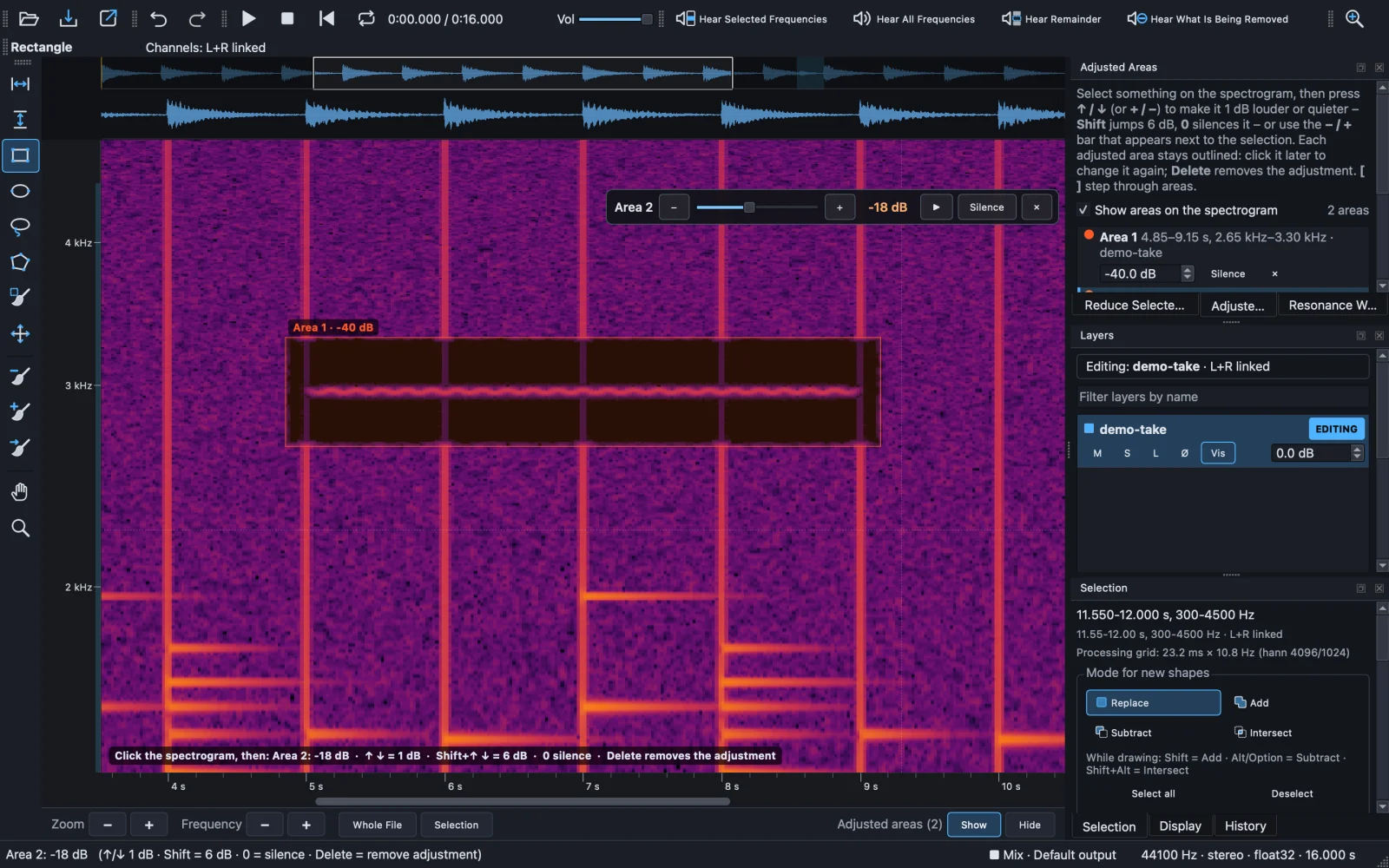
The screenshots on this page show one 16-second example recording: piano chords, a whistle from 5 to 9 seconds and a cough at about 11.6 seconds.
- 1. Open a file. Drag a recording onto the window, or choose File → Open Audio… (⌘O). WAV, AIFF, FLAC, MP3, Ogg Vorbis, Opus, CAF and other formats open. Your original file is never changed.
- 2. See the sound as a picture. Time runs left to right, pitch bottom to top, and brightness shows loudness. A steady tone, such as a whistle or a hum, is a thin horizontal line; a short click or a cough is a vertical burst.
- 3. Draw a box around the sound. The Rectangle tool is ready when you start. Box in just the sound you want to change, and a small level bar appears next to it.
- 4. Click − / + or Silence. Each click on − or + makes that part 1 dB quieter or louder. You can also drag the slider or click Silence. Everything outside the box stays exactly as it was, and no time is cut.
- 5. Listen, then export. Press Space to play; changes are heard while it plays. File → Export Audio… (⌘E) saves the result as WAV or FLAC.
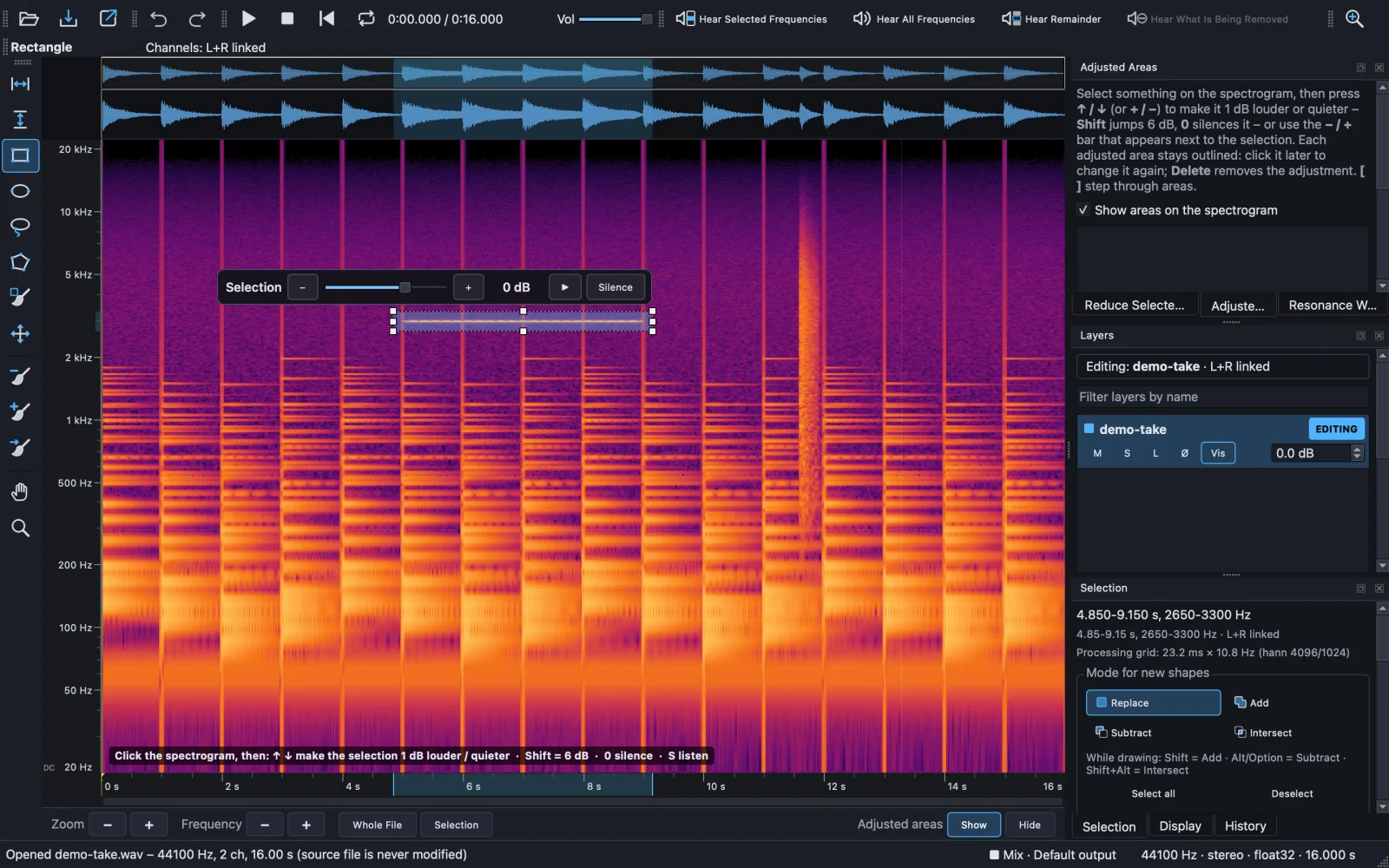
The whistle, then without it.
Turned down to −40 dB, the whistle’s line disappears from the picture. The piano outside the box stays exactly as it was, and the recording keeps its length.
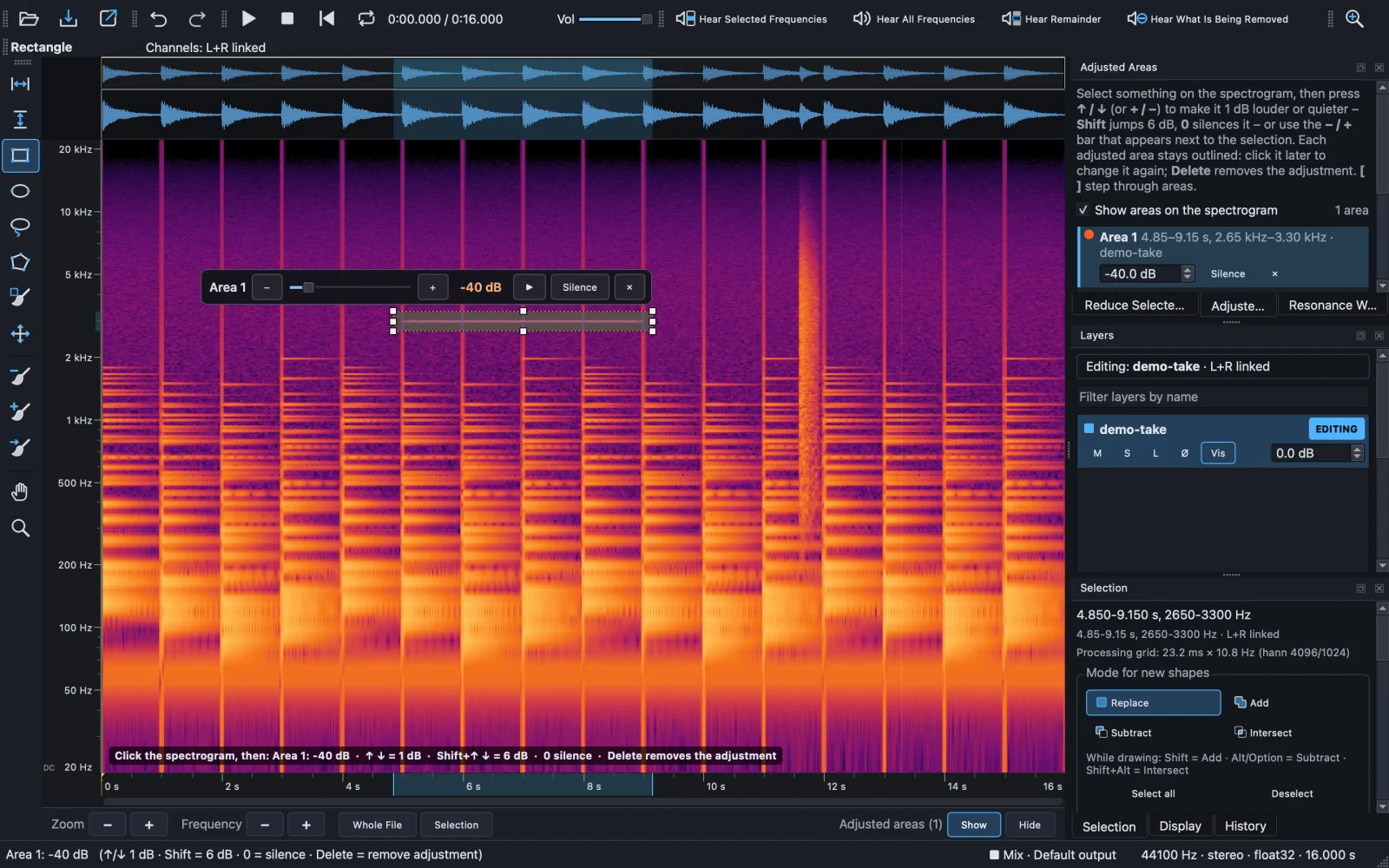
Change your mind.
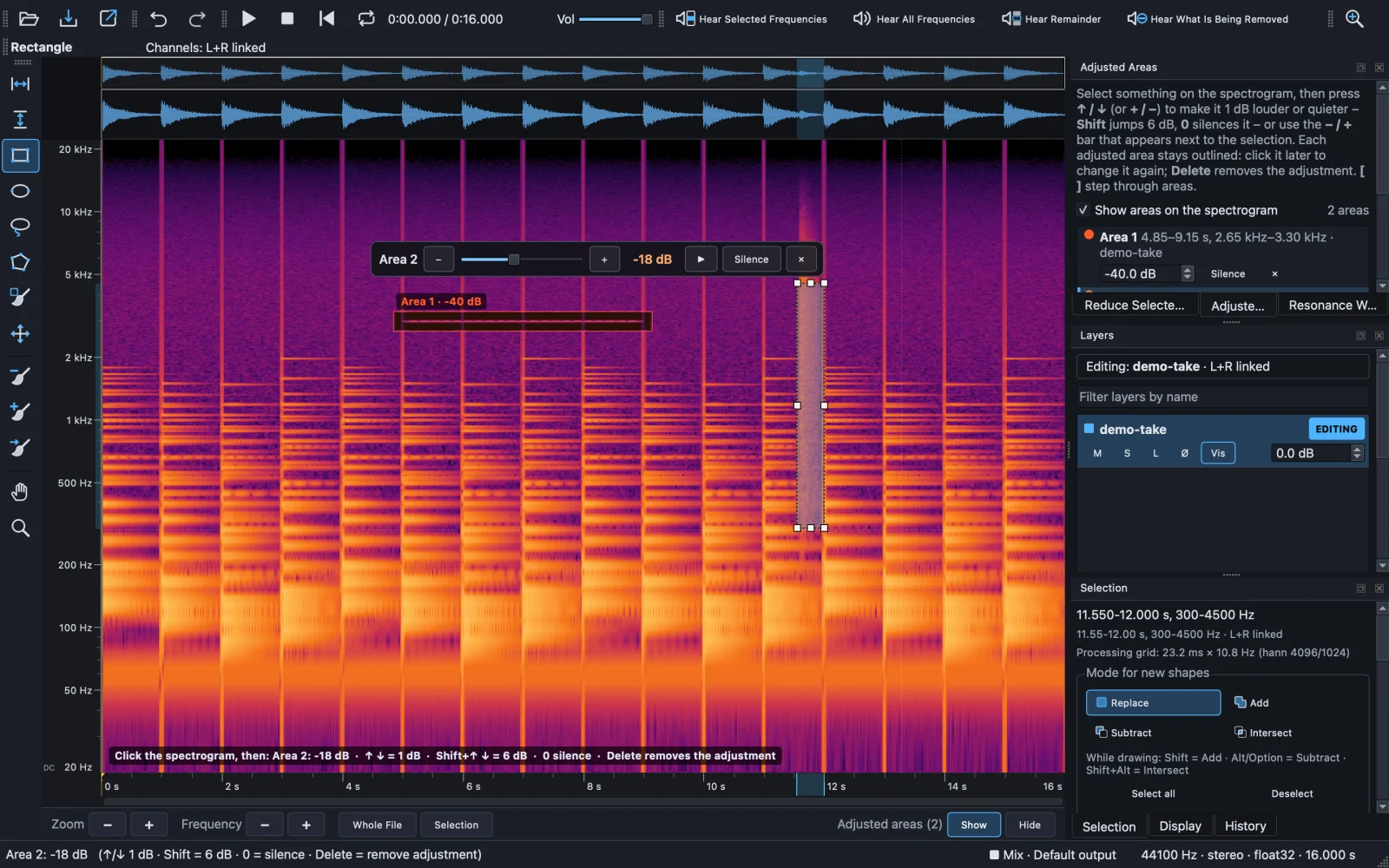
Every adjusted area stays outlined with its name and level, such as Area 1 · −40 dB. Click inside it to change it again, or press Delete to remove the change and get the original audio back exactly. The Adjusted Areas panel lists every area.
Want a clear view? Show / Hide, next to Adjusted areas in the bar under the spectrogram, hides the outlines (Shift+H). It changes only the display, not the sound. The same bar has Zoom − / +, Frequency − / +, Whole File and Selection.
Handy keys
- ↓↑
- 1 dB quieter / louder; hold Shift for 6 dB
- 0
- Silence the selected part
- Delete
- Remove the adjustment from the area you picked
- SD
- Hear only the selection / hear the difference, what an edit removed
- ⌘Z
- Undo, up to 200 steps
- Shift+H
- Show or hide adjusted areas
- F1
- Built-in step-by-step tutorials
Click the spectrogram first so the keys reach it. Everything else is in the user manual.
Good to know
- Needs a Mac with Apple silicon and macOS 15 or later.
- No Windows or Linux installer yet.
- Export is WAV or FLAC.
- Long files use a lot of memory: a 60-minute file needs up to about 6 GB while a long area is applied.
Found a bug or have a question? Open an issue on GitHub Issues with your Spledio version (Help → About), your macOS version and the steps that cause the problem.
Spledio is an independent project and is not affiliated with or endorsed by any maker of commercial audio software.
More from IA Compa
 DawnamiteGive your next sound room to grow.
 BituabitBit by bit, never back to zero.
 TextiacPrivate messages. No accounts to create.
 SicnoteWrite songs that rhyme, on-device.
 SonediaA multitrack studio in your pocket.
 Theme4LogicFree, open-source color themes for Logic Pro.
 VibiacYour agents, in parallel. Your repo, never in chaos.
 WatowerSee what's really using your Mac's memory, CPU and disk, and get space back safely.
 WasThatHeard a sound? Find the app behind it.
 ClinkClean links. Never broken ones.
Building something like this?
We build our own apps end to end — and we build them for clients, too. If you have an app idea, let's talk.