Claused
Ask the next useful question.
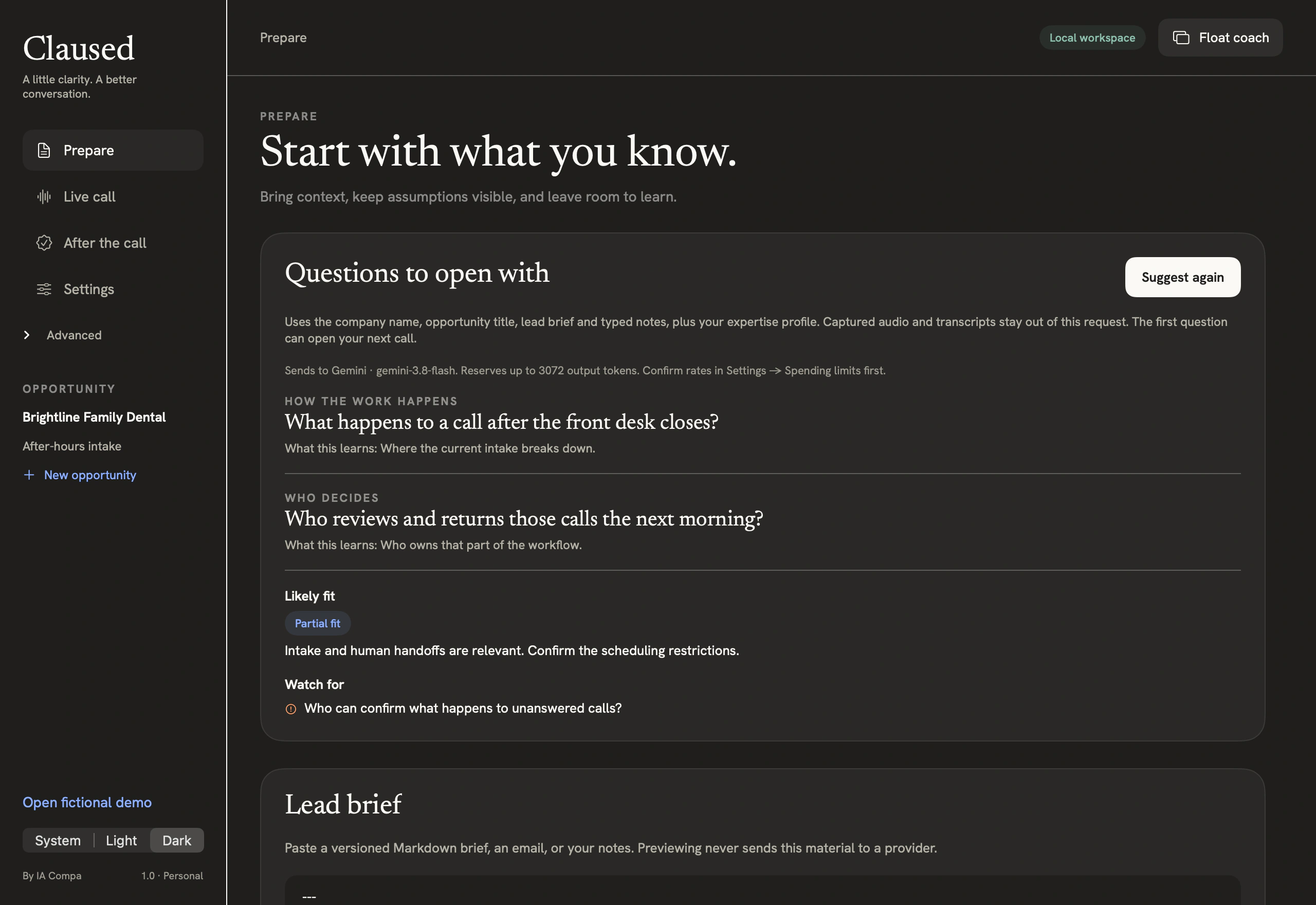
Claused is a free Mac app for sales and consulting discovery calls. It transcribes selected audio on your Mac, suggests follow-up questions and helps you review the record before sharing.
Uncover how a lead works, where the process breaks down and what to clarify next. Keep a source-backed record you can review and share after the call.
macOS
Version 1.0 · Apple silicon · macOS 26 or later


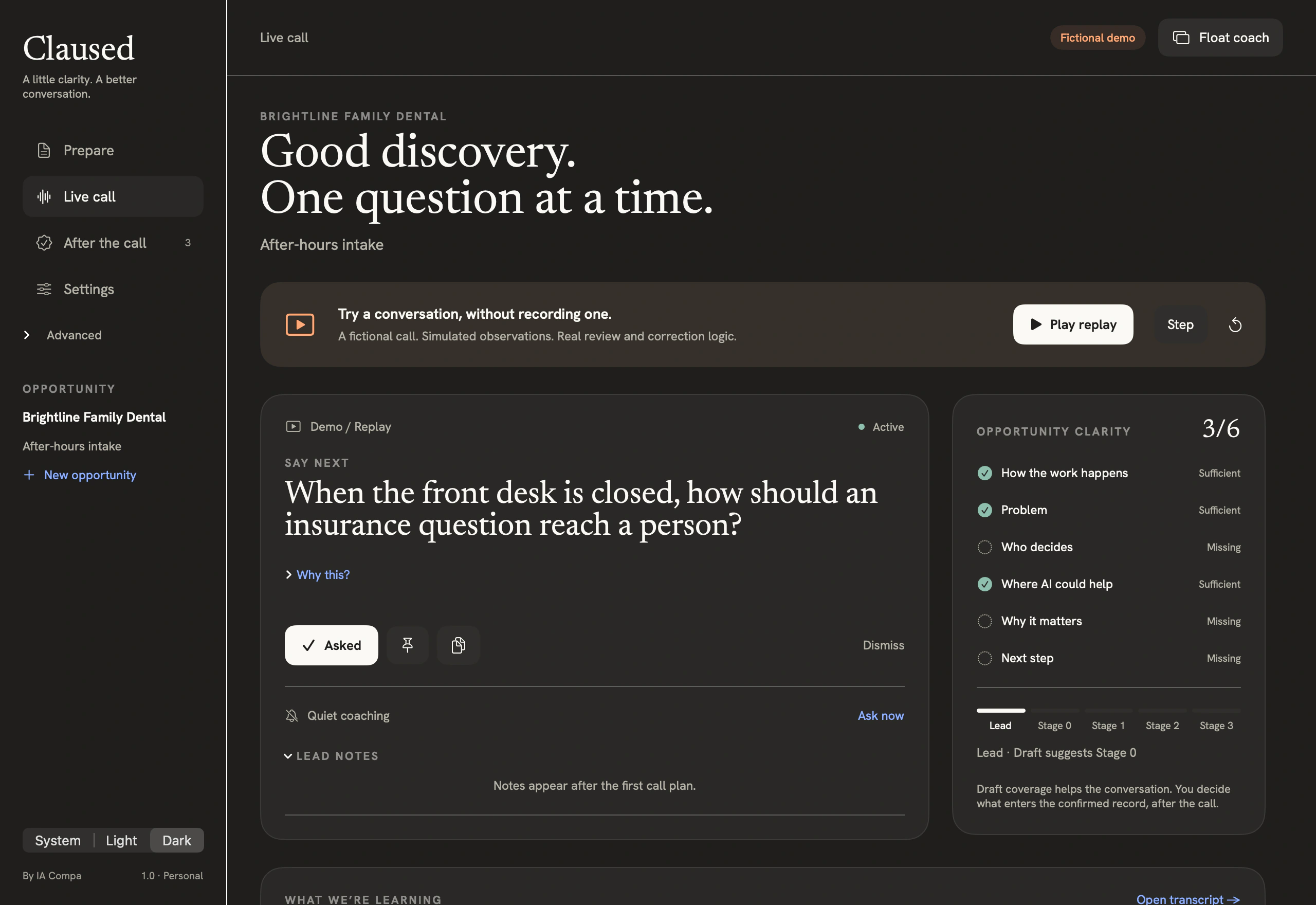
A follow-up grounded in the conversation
Start with what the lead actually said. A suggested question can help you clarify the workflow, the cost of the problem, or the next step.
Example question
“For other questions, should there be a live handoff or a message for your team?”
Why this question?
In the fictional Brightline call, the lead wanted routine scheduling handled separately from other inquiries. The follow-up clarifies what a person should handle.
From lead brief to reviewed recap
1. Prepare an opportunity
Create an opportunity and add the lead brief or notes you already have. Use Prepare to review the context and decide what you want to learn.
2. Choose the two audio sources
In Live call, select the meeting app and your microphone. Notify participants and confirm permission before starting. Keep cloud coaching off for a first test.
3. Check the evidence, then export
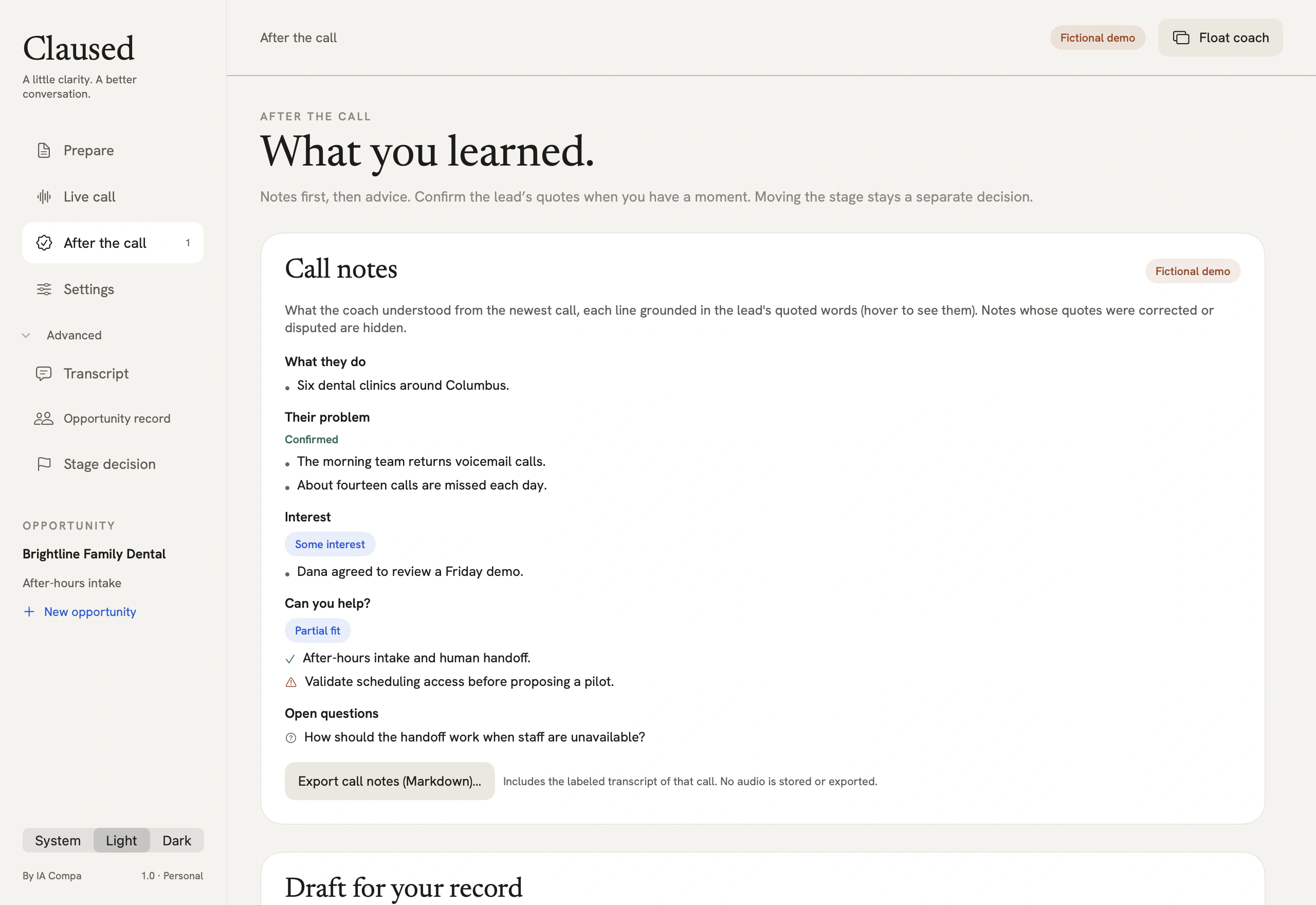
Open After the call. Review the quotes, proposed facts, recommendations, and next step. Approve, edit, or dismiss items, then preview the exact export before saving.
User manual
Practice in the fictional demo. Use the audio check before your first live call.
1. Install Claused and try the fictional call
Claused requires a Mac with Apple silicon and macOS 26 or later. The fictional demo uses its own workspace.
- Download the Claused ZIP from this page. Open it and move Claused.app to Applications.
- Open Claused from Applications. If macOS blocks the app, use Claused support for help.
- Select “Open fictional demo” in the sidebar if the demo is not already open. Open “Live call”.
- Select “Play replay” to follow the fictional conversation. Use “Step” to advance one turn at a time.
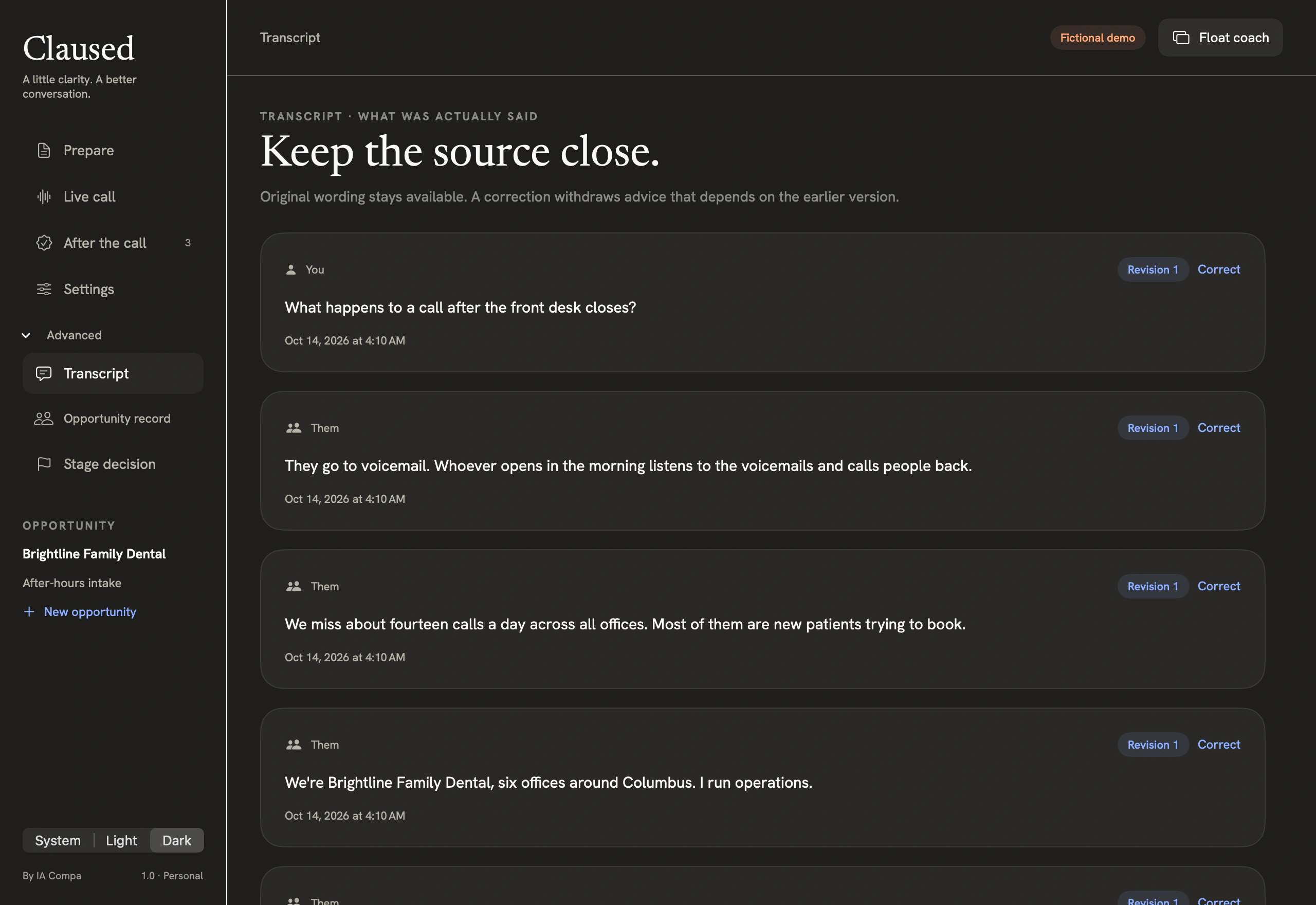
- Open “After the call” to inspect what the demo learned. Open “Advanced” → “Transcript” to inspect the original wording.
Check your result. The header shows “Fictional demo”. Replay practice requires no live capture or API key.
2. Prepare a discovery call
Start with the workflow you need to understand. Put the facts you already have in the local opportunity.
- Select “New opportunity”. Enter the company and a specific workflow or opportunity name.
- Choose “English” or “Español” in “Coaching language”. This also selects the call transcription language.
- Select “Create opportunity”, then open “Prepare”. Paste your lead brief and select “Preview import”.
- Check the preview. Select “Add as unreviewed context” to keep the brief in this opportunity.
- Use “Save note locally” to record the questions you still need to answer. Start with the workflow, business impact, owner and next decision.
- If you set up a provider, read the text it will receive and the displayed cost limit. Select “Suggest questions” only when you are ready to send that request.
Check your result. You can name the workflow and the first question you want to ask. Imported context still needs review.
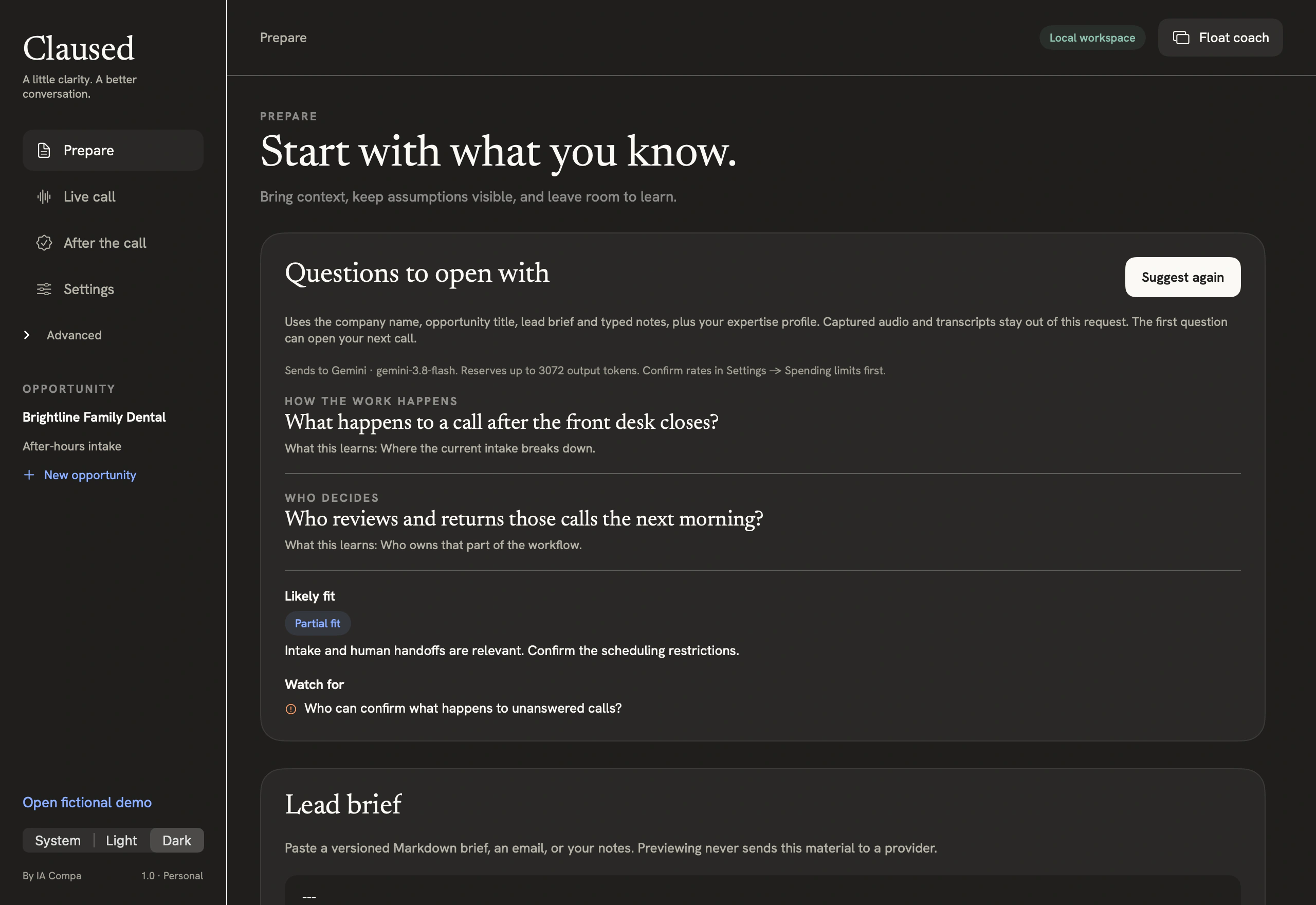
3. Check your microphone and meeting audio
Use a short practice call with permitted audio before a customer call. Wear headphones to reduce pickup from speakers.
- Open the meeting app, then open “Live call” in Claused. Enable “Microphone” and “Meeting audio” to test both sources.
- Choose the meeting app in “Meeting source”. Select “Refresh apps” if it is missing. Close other audio-producing tabs in a selected browser.
- Choose your input in “Microphone source”. Select “System Default” to use the Mac’s default input. Select “Refresh microphones” after reconnecting a device.
- Use “ScreenCaptureKit” in “Capture engine”. If the picker failed on an earlier attempt, you can try “Selected app (Screen Recording)” with Screen Recording permission. Test each browser audio route before you rely on it.
- Enable “Label my microphone as You and the call audio as Them” only when your microphone is yours alone.
- If the language assets are missing, enable “Allow Apple speech assets to download if needed” only if you approve the download.
- Leave cloud coaching off for this practice call. Notify participants and confirm capture permission, then select “Start call”.
- After you start, allow microphone access if macOS asks. If the sharing picker appears, select and share only the meeting app you chose. Wait for “Listening”.
- Speak to check the “Microphone” meter. Play permitted meeting audio to check the “Meeting” meter. Check that transcript text follows each source.
- If one source fails, select “Off-record pause”. Reconnect the microphone or select another input while paused. End the call before changing the meeting app or capture engine.
Check your result. Both meters respond and both sources appear in the transcript. Repeat the check after changing an input. End the practice call when finished.
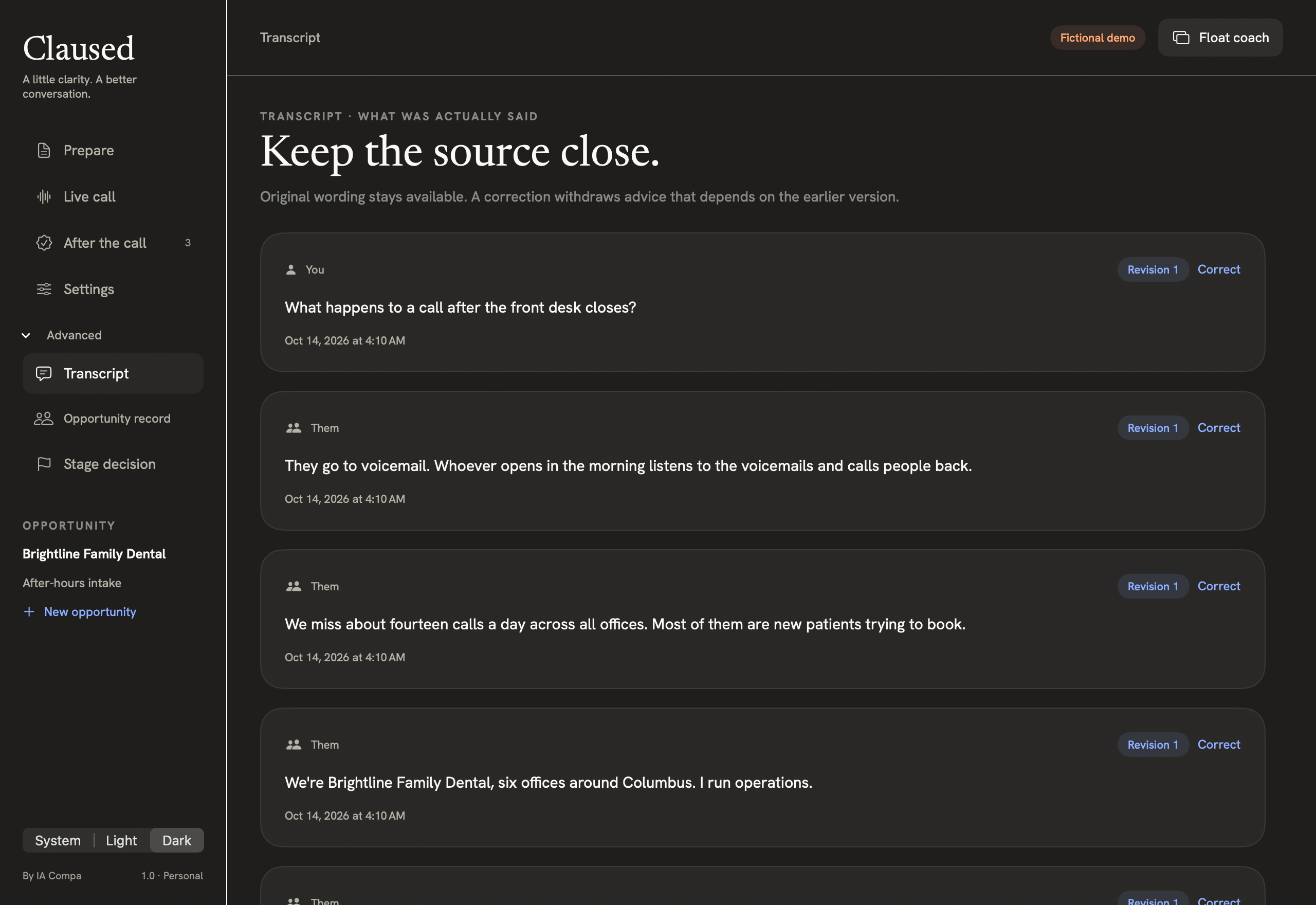
4. Run the call and go off record
Local coaching uses checklist questions and specific risk flags. Optional cloud coaching adds analysis of authorized text.
- Notify participants and obtain the permission you need for capture and processing. Confirm “Participants have been notified and this capture/processing is permitted”.
- Select “Start call” in “Live call”. Begin speaking after the status shows “Listening”.
- Use the current coaching card or select “Ask now”. Select “Asked” after you ask a suggested question.
- Select “Quiet coaching” to hide ordinary suggestions. Capture and permitted processing continue.
- Select “Off-record pause” before the off-record discussion. Wait for the “Off record” status. Both inputs stop, and Claused cancels pending cloud work.
- Select “Resume” once participants are ready to go back on record. Check that “Listening” returns.
- Select “End call / prepare recap” when you finish. A normally ended cloud call can request a recap and draft within your limits.
Check your result. Use “Off record” to verify the pause. The meeting app’s mute control applies to that app. A pause cannot recall text already sent.
5. Correct evidence and review the record
Check what was said before you approve an observation, recommendation or draft entry. A quote can report an estimate.
- Open “After the call”. Read “Call notes” and expand “Quotes to confirm”. Compare each observation with its quote.
- If the transcript is wrong, open “Advanced” → “Transcript”. Select “Correct” on the source, enter the corrected wording and select “Save correction”.
- Review any items that used the corrected source again. Earlier suggestions can lose their support.
- Select “Confirm” for an accurate observation or “Not right” to reject it. Use “Resolve conflict…” when the app identifies conflicting accounts.
- If the record draft has entries, expand “Quote” to inspect their evidence. Choose “Approve”, “Edit…” or “Dismiss” for each entry.
- To change the opportunity stage, open “Advanced” → “Stage decision”. Choose a “Proposed stage”, enter a reason and select “Confirm stage” when it is available.
Check your result. You can trace reviewed entries to their current sources. Confirming a quote or approving a draft entry leaves the stage unchanged.
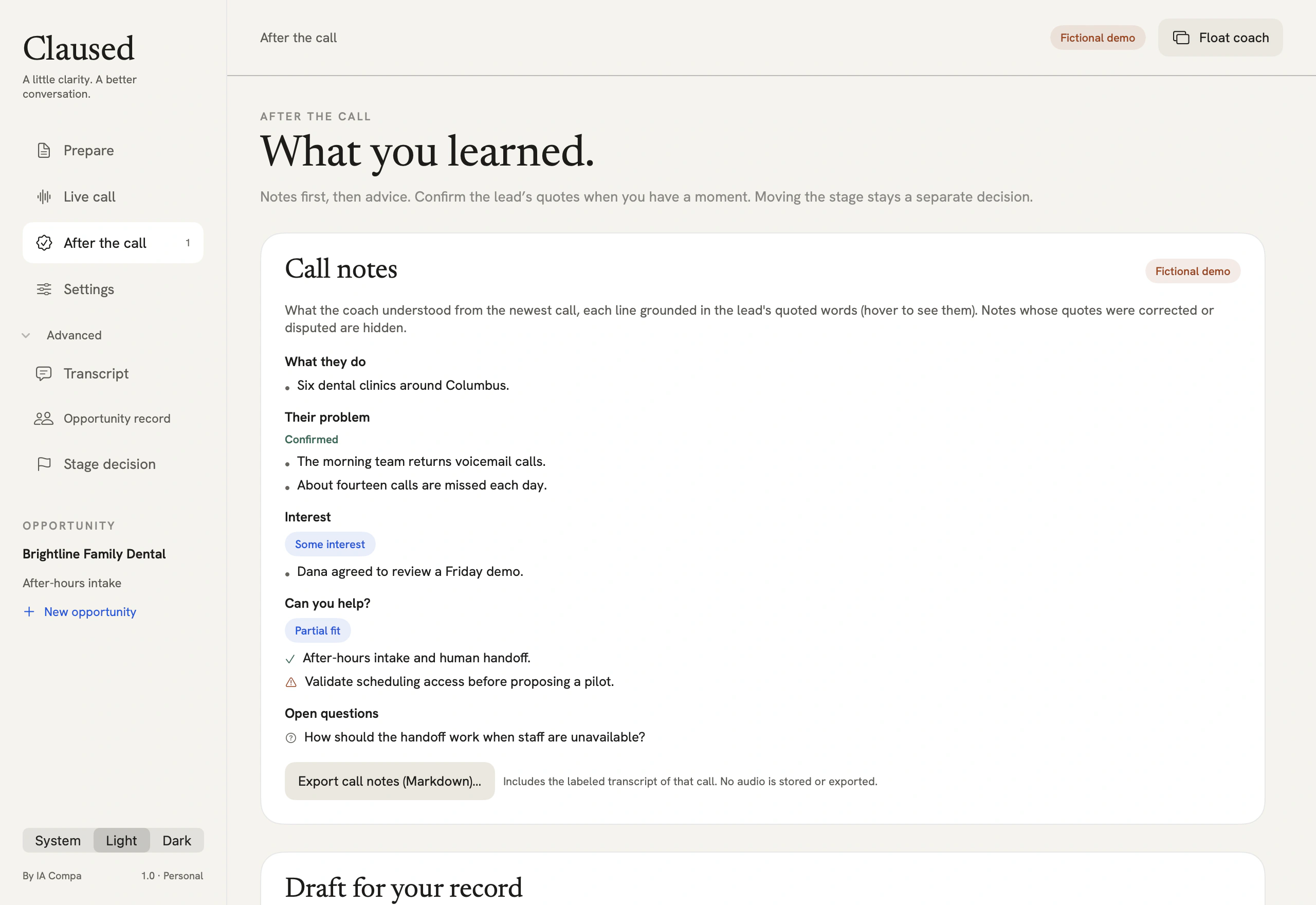
6. Save the exact export you intend to share
Choose the export for your audience. A saved file is a separate copy under your control.
- Open “Advanced” → “Opportunity record”. In “Exports”, select “Export internal brief” for your own reviewed Markdown record.
- Choose “Export customer recap” for a customer-facing Markdown recap. Choose “Export JSON” for structured reviewed data.
- For the call transcript, open “After the call” → “Call notes”. Select “Export call notes (Markdown)…”. This file includes the labeled transcript of that call.
- Read the exact preview and edit anything you need to change. If you edit JSON, keep it valid.
- Select “Save this version…” and choose a destination. Open the saved file to check the content before you share it.
Check your result. The saved file contains only the content you intend to share. Saving it does not send it or update another app.
7. Set up optional cloud coaching
Local transcription and coaching work without an API key. With cloud coaching, your provider may bill you for the text it processes.
- Before starting the call, open “Settings” → “AI provider”. Choose OpenAI, Claude or Gemini in “Selected provider”.
- Enter the provider API key in Claused and select “Save key securely”. Claused saves it in macOS Keychain.
- Enter the model available to your account in “Exact model ID”. In “Spending limits”, check the provider’s current rates for this model.
- Enter the input and output rates. Set the per-call and daily limits, the request ceiling and a future “Rates valid until” date.
- Confirm the rates and select “Save rates and limits”.
- To check the connection, use the button “Test [provider] with fictional text”. This sends one potentially billable request with built-in fictional text.
- In “Live call”, enable “Use [provider] for live coaching and recommendations” when you want cloud coaching for this call.
- Review the displayed scope for finalized transcript text and any saved expertise profile. Turn on “Include the lead brief and typed notes” only when you can share that context.
- Confirm the participants’ notice and permission for this scope. Use “Off-record pause” whenever capture and cloud processing must stop.
Check your result. Settings show a saved key and current rates for your selected model. Before Start, check the selected provider and the authorized text scope.
Download Claused for Mac
Version 1.0 is free and open source. It requires Apple silicon and macOS 26 or later.
Transcription works on your Mac without an API key. For optional cloud coaching, save your own provider key in Claused Settings. Claused stores it in macOS Keychain.
Questions about Claused
Is Claused free, and which Macs can run it?
Claused is free and open source. Download it from this page for a Mac with Apple silicon and macOS 26 or later. Optional cloud coaching can incur provider charges.
Can Claused transcribe both sides of a call?
Claused can transcribe your microphone and selected meeting audio with macOS permissions. Test both sources in a practice call before using a browser or meeting app with a lead.
Do I need an AI provider key?
Local transcription and local coaching work without an API key. For optional cloud coaching, save your own key in Claused Settings. The app stores it in macOS Keychain and sends authorized text to the provider you configure. Your provider may bill for usage.
Can I stop capture during a call?
Yes. Off-record pause stops capture and cloud processing until you explicitly resume. Quiet coaching hides ordinary suggestions while capture continues.
What can I share after a discovery call?
Review the sources and decide which entries to approve, edit or dismiss. Preview the reviewed record before saving a Markdown or JSON export.
More from IA Compa
 DawnamiteGive your next sound room to grow.
 SicnoteWrite songs that rhyme, on-device.
 SonediaA multitrack studio in your pocket.
 VibiacYour agents, in parallel. Your repo, never in chaos.
 WatowerSee what's really using your Mac's memory, CPU and disk, and get space back safely.
 WasThatHeard a sound? Find the app behind it.
 ClinkClean links. Never broken ones.
 SpledioSee your audio. Fix just the part that's wrong.
 TextiacPrivate messages. No accounts to create.
 BituabitBit by bit, never back to zero.
 Theme4LogicFree, open-source color themes for Logic Pro.
Building something like this?
We build our own apps end to end — and we build them for clients, too. If you have an app idea, let's talk.