Making music
MIDI Keyboard and Harmony Pads
Play notes and chords across 45 keys, choose registers and resize the whole keyboard.
In this guide
Open and choose a track
Open MIDI Keyboard in the header or press Command+K. Select the destination MIDI instrument track from its track menu, or use Add Piano. Stop recording before changing the destination. The computer keys use physical positions, so the displayed keycaps are the guide on another keyboard layout. Click a pad or press its displayed key; release it to stop.
Harmony Pads and registers
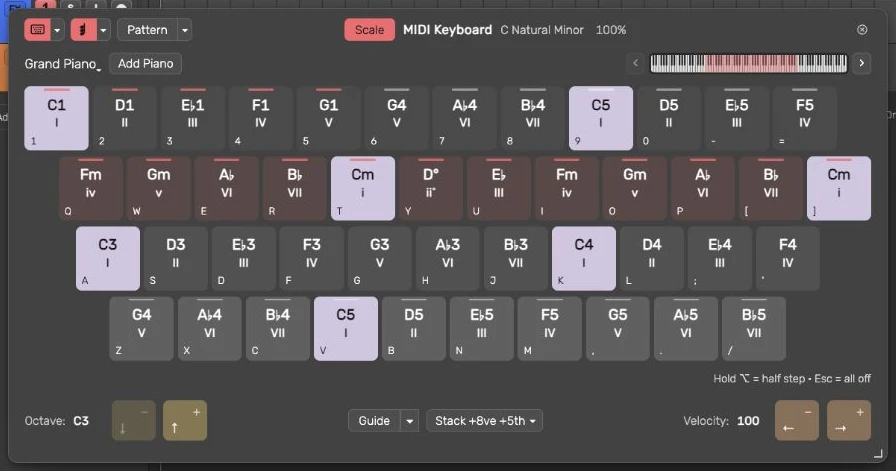
Harmony Pads adds the number and bottom rows to the ordinary two-row keyboard. Its compact view has 45 musical keys: 12 number keys from 1 through =, 12 upper keys from Q through ], 11 middle keys from A through the quote key, and 10 bottom keys from Z through /. It does not draw surrounding laptop control keys.
Turn Harmony Pads on for the four-row view, then choose Stack, Two hands or Melody below the keys. Stack spreads the rows by Octave + fifth or Octave + third. Two hands assigns lower and upper roles across the hands. Melody separates melodic notes and the chord role. The number row adds outer bass and treble registers. Read the pitch or chord label on each pad; it changes with the key, scale, mode and octave.
The layouts preserve their registers rather than folding every row into the same narrow range. Scale-dependent octave stops keep supported notes within C1–C7. A greyed octave control means the next move would leave the permitted map. Small or unsupported custom scales can use the fallback layout; do not infer the wide stock-scale coverage from every custom mask.
Scale, chords and Option
Scale follows the chosen song or clip context. Chords turns eligible pads into the selected chord type; other roles remain notes. Open the Chords menu to choose the kind. Smooth voicing is unavailable while Harmony Pads keeps fixed registers; its stored setting remains available when you return to the ordinary two-row keyboard.
Hold Option to preview and play the alternate sound: eligible single notes move a chromatic half-step and chord pads can borrow their alternate harmony. Release Option to restore the idle preview. A held physical key retains the sound it started with until release; changing an idle preview does not re-strike it.
A bright key shows the physical key or pad you are holding. Softer sounding feedback can also appear where another held or incoming note shares that pitch. The softer feedback does not mean a second computer key is pressed.
Resize the whole panel
Drag the bottom corner grip to scale the entire keyboard, including text, buttons, ranges and keys, from 70% to 140%. Releasing commits the preference once. Escape, pointer cancellation, lost capture, blur or closing during a drag restores the prior size without saving that unfinished change. Starting a resize releases held software notes; press again after the gesture ends.
Focus the grip and use an arrow key for a 5% size change. Those arrows resize rather than changing octave or velocity. Home, double-clicking the grip or clicking the displayed percentage resets to 100%. Musical letters work immediately after a pointer resize finishes, even while the grip remains focused.
The displayed size can fit down temporarily when the viewport shrinks. Your preferred size returns when room is available. Below the readable 70% minimum, the outer panel scrolls so the remaining controls stay reachable. The preference is local to the app/browser profile and survives closing and reopening; it is not a project note-mapping change.
Stop notes and return to editing
Escape, closing the panel, changing the active project or losing focus releases software-held notes. Text fields and dialogs keep their own keyboard input. Outside grip focus, the keyboard arrows retain their octave and velocity jobs. Use MIDI setup for controllers and Piano view for playback visualization.
Velocity, patterns and styles
The velocity controls set how strongly software notes are struck; Left and Right adjust them outside resize-grip focus. Up and Down move octave. Upper row enables the chord-pattern role in the ordinary keyboard. Pattern needs Upper row; its menu chooses the pattern and speed. Turn it off to return to held chords.
Pattern to clip renders a held upper-row chord or the Guide's registered Song Style loop as one undoable MIDI clip. Select an editable pitched instrument and stop recording first. Drum targets, frozen tracks, missing harmony and incompatible meter can disable it. A loop over eight bars needs an ordinary MIDI track when it exceeds the Step Sequencer grid. Read the menu's reason before changing your target.
The Song Style button offers that style's choices without silently changing tempo or meter. Opening a project with a style does not replace your current chord type or pattern. Opening a menu releases held software notes so a captured key-up cannot leave one sounding. Save a created pattern clip, then review its actual notes in MIDI editing.
Guide for the macOS development build. For changes between versions, see update history.