Editing
Tempo, meter, key & grid
Set the musical structure and snapping for your project.
Tempo and meter
BPM means beats per minute. Drag the BPM field to change tempo or use Tap to estimate it from repeated taps. A time signature such as 4/4 groups four quarter-note beats into a bar. Changing meter changes the bar grid; it is not a tempo change.
Use the Tempo, Signature and Marker buttons above the track headers to reveal their lanes. Double-click an empty lane to add an event. Drag it to move it. In the tempo lane, vertical movement changes BPM; select a point and press Enter for numeric entry.
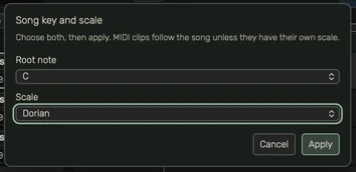
Choose a key in one panel
Click Key in the header. Choose Root note, then Scale in the same panel. Apply commits both choices together; Cancel or Escape leaves the song unchanged. No Scale removes the song-scale setting.
MIDI clips follow the song scale unless they set an override. A scale is a pitch reference; do not assume choosing a key automatically transposes existing audio or rewrites all existing MIDI notes. Review the clip's own scale and pitch-editing options.
Choose a grid
Smart changes the snapping resolution with zoom and meter. Bar snaps to bar boundaries. A fraction such as 1/4 or 1/16 selects a fixed note division; a T suffix is a triplet. Off disables musical snapping. For example, 1/8 aligns edits to eighth-note divisions; Bar aligns them to bar boundaries. Grid changes where edits snap, not playback speed, and selecting a new grid does not move existing notes.
Hover the Grid selector for an explanation of the current choice. Smart and fixed grids affect edit placement, not the audio's tone. At a fine zoom, a fixed grid may be coarser than what you can see.
Mark song sections
Add markers for Intro, Verse, Chorus and other landmarks. Double-click a marker name to rename it and drag to reposition it. These guides help navigation without cutting your regions.
Guide for the macOS development build. For changes between versions, see update history. Public installers and final system requirements are not available yet.