Reference
Settings & appearance
Configure audio, MIDI, editing, shortcuts and the workspace.
Open Settings
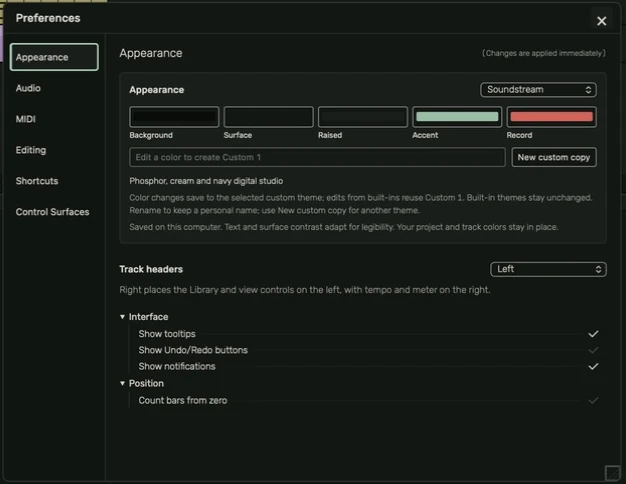
Use Settings in the app menu or Command+comma. Preferences opens over the studio. Most settings apply immediately. The sections are Appearance, Audio, MIDI, Editing, Shortcuts and Control Surfaces.
Appearance
Choose a theme and UI size that keeps controls readable. Track headers can be on the left or right; the Library and related header controls mirror with that choice. Logic, PURPL, Avid and Fruity use reference-matched palettes for the toolbar, mixer and controls. The native Mac title bar follows the theme too. Editing a theme color reuses Custom 1; New custom copy creates another theme deliberately.
Active header view and zoom buttons use a solid theme-colored fill with contrasting icons. Unpressed buttons keep a neutral fill. The arrangement-tool menu uses its own readable panel colors, separate from the toolbar.
Soundstream
Choose Soundstream in the Studio theme selector for green-tinted charcoal surfaces, warm cream labels, phosphor-green active controls and navy device headers. Technical readouts use monospace numbers. Waveforms sit on a near-black background, and track colors are muted while retaining their individual hues. Record and overload indicators remain red. The appearance applies across the arrangement, MIDI editor, mixer, device rack and native title bar. Changing themes does not change notes, audio or processing settings.
Audio
Select input and output devices, sample rate and buffer. Lower buffers can reduce reported delay but leave less processing time per block. Increase the buffer if the system develops clicks or dropouts. Stop playback and recording before changing protected device settings. Recording options include count-in and take-folder behavior.
MIDI and control surfaces
MIDI settings include synchronization. Match the intended clock direction and ports; avoid sending a clock back into its own input. Control Surfaces configures supported hardware mappings. Track Capture MIDI input selection is separate from controller mappings and external MIDI output.
Editing and shortcuts
Editing preferences change editing behavior. Shortcuts lists current assignments by context. Make a change and use Apply. Factory prepares the default assignments; Reset reloads the current working set. Do not infer a command from an old screenshot—this guide's Shortcuts page and the live settings show the current defaults.
Reported latency
The footer can show all audio details, overall latency only or no latency detail. Input and output device reports describe the active paths. Overall is their reported combination; it excludes plug-in delay and manual recording compensation. It is not an acoustic round-trip measurement.
Guide for the macOS development build. For changes between versions, see update history. Public installers and final system requirements are not available yet.