Start here
Find your way around
Understand the header, arrangement, bottom panel and Library.
The header
BPM is playback tempo. Meter groups beats into bars. Key chooses a musical root and scale. Grid controls snapping. The tool selector chooses what a drag will do. The transport contains playback, stop, recording, loop, punch and the time display.
Waveform zoom changes the height of the waveform drawing, not the audio volume. The vertical and horizontal zoom controls change track height and timeline scale. Their icon buttons toggle automatic fitting; moving a slider returns to manual zoom. Grid, transport, metronome and view controls share the same button height and border treatment as zoom. A solid colored button marks an enabled mode. Follow keeps the playing position in view; Metronome supplies an audible timing click. Play and Record keep their recognizable status colors.
Piano and MIDI Keyboard
Piano in the header opens a full workspace with falling MIDI notes and a horizontal keyboard. Click it again to return to the arrangement. It sits immediately to the left of MIDI Keyboard when track headers are on the left. The view controls reverse order when track headers move to the right. Piano settings appear in an overlay, leaving the keyboard visible. MIDI Keyboard is the separate playable software keyboard.
The arrangement
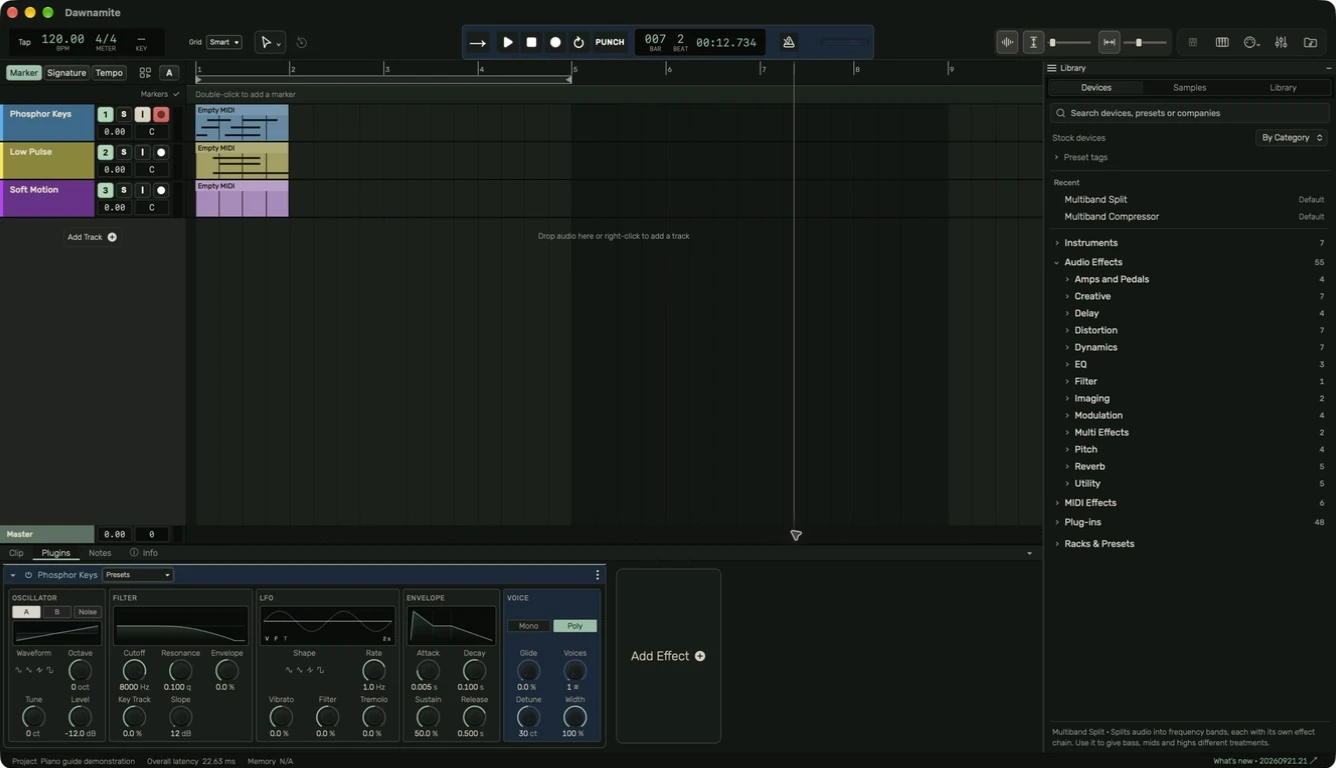
Tracks run horizontally; time runs left to right. The ruler labels musical positions. Audio regions show waveforms, while MIDI regions show notes. Both show timing lines. A selected range is different from a selected region: range commands affect the highlighted interval.
The bottom panel
Clip edits the selected region. Plugins shows the selected track's instrument and effect chain. Notes stores written project notes. Info opens a compact contextual help card alongside the active panel.
Plugins uses a consistent compact height. Returning to Clip starts at that compact height; drag the divider upward if you need a larger editor. Tab shows or hides the detail panel. The Mixer button or M opens the mixer below the arrangement.
The Library
Use Library in the header, or L, to browse devices, samples and saved material. Expand a category to see its contents. The search field narrows the list. Drag compatible items to a track or device chain.
Rearrange the workspace
Preferences → Appearance includes Track headers on Left or Right. With headers on the right, the Library moves to the left, and the related header controls reverse order. The arrangement remains left-to-right in time. Drag the header or Library divider to change its width.
Guide for the macOS development build. For changes between versions, see update history. Public installers and final system requirements are not available yet.