Sound & mix
Instruments & plug-ins
Build an effect chain and understand each stage.
Choose an instrument or effect
An instrument turns MIDI notes into sound. An audio effect processes audio already present. Select a track, then open Plugins in the bottom panel. Add Effect is one clickable button. You can also open Library → Devices and expand a category or search by name.
Work with a chain
- Select the track whose sound you want to change.
- Add an appropriate effect from Library or Add Effect.
- Play a short section and change one parameter at a time.
- Compare the device enabled and bypassed at a similar listening level.
- Reorder devices only when you mean to change the signal flow.
- Save the project after a useful result.
Order matters. Distortion before EQ creates a different result from EQ before distortion. A limiter at the end sees the combined result of every earlier device.
Controls and presets
Knobs and value fields show parameter values and units. Hover a control for a short explanation. Drag to adjust; many numeric controls support exact entry through their value interaction. A preset changes a collection of device settings, so compare it carefully with the current sound. Presets are starting points, not a substitute for listening in context.
Read the graphs
A response or transfer graph shows the effect of its controls. A live meter, spectrum or envelope marker needs incoming sound or notes. A fixed waveform preview is not an audio oscilloscope.
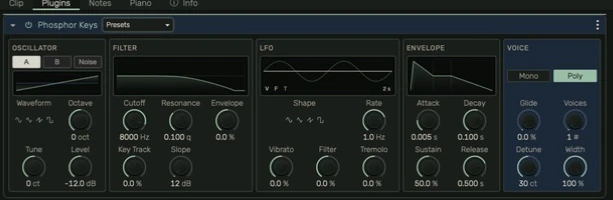
In the MIDI synthesizer, Attack, Decay and Release change the envelope's horizontal stage widths; Sustain sets the held level. Time is visually compressed so very short and very long stages remain visible. The LFO graph shows a two-second window and separate depth traces for vibrato, filter and tremolo. The filter graph includes dashed envelope and key-tracking reference responses; played notes determine the actual modulation.
Stock device reference
The device reference in this guide lists individual instruments, audio effects and MIDI processors, with their controls and limitations. Start with EQ and dynamics for the most common sound-shaping tools.
Installed plug-ins
Library → Plug-ins lists discovered compatible installed plug-ins in the current build. Install a plug-in using its vendor's installer and follow the app's scan/error messages. A scanned entry is not proof that every editor, preset or automation workflow works. If a plug-in is unavailable or fails, preserve the project and its placeholder rather than deleting it to make a warning disappear. Development compatibility is still being tested; no blanket vendor or format guarantee is made here.
Guide for the macOS development build. For changes between versions, see update history. Public installers and final system requirements are not available yet.