Connect & record
Audio interfaces & microphones
Connect an input, choose channels and hear the right signal.
Connect your equipment
Connect your audio interface to the Mac and install its manufacturer's driver or control app if required. Connect headphones or speakers to the output you intend to use. Connect the microphone or instrument to an appropriate interface input. Follow the microphone and interface instructions for input mode, instrument impedance and phantom power.
Select devices in Dawnamite
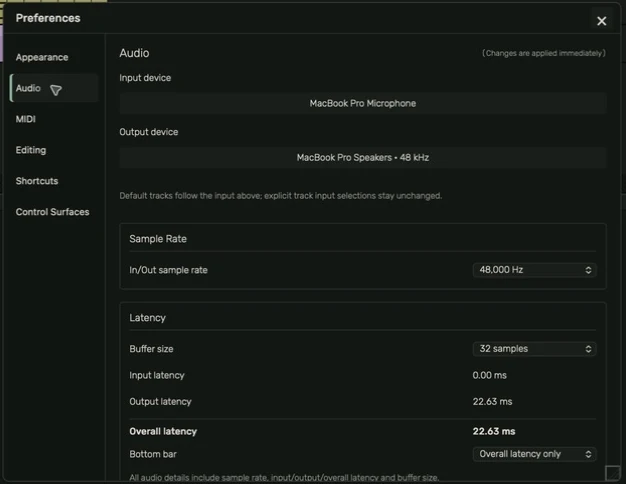
- Open Settings or Preferences with Command+comma.
- Choose Audio. Select Input device and Output device.
- Choose a sample rate supported by the device. Stop playback and recording before changing the buffer.
- Add an audio track. Right-click its header and choose Capture Audio.
- Select the input channels. A single microphone normally uses its one mono input; a stereo source uses the intended pair.
- Check record arm and the input meter while speaking or playing.
Default tracks follow the input device in Preferences. A track with an explicit input keeps that selection. If a device disappears, reconnect it or choose another input deliberately; do not assume a different microphone has been substituted.
Permissions and levels
If macOS asks for microphone permission, allow it for Dawnamite when you intend to record. If denied, check System Settings → Privacy & Security → Microphone, then return to the app. A software track fader does not repair clipping that occurred in the interface. Set input gain on the hardware while watching its meter and Dawnamite's input meter.
Choose one monitoring path
Turn on the track's I control for software monitoring through the computer. If your interface provides direct hardware monitoring and you use that instead, turn software monitoring off to avoid a doubled or delayed signal. The interface's hardware monitor mix is adjusted on the interface or its control app.
Test before a session
Record a short passage, stop, play it back and confirm the correct channel, timing and level. Wired headphones usually avoid the extra delay of Bluetooth. For crackles or lag, see Troubleshooting.
Guide for the macOS development build. For changes between versions, see update history. Public installers and final system requirements are not available yet.