Editing
MIDI regions & note editing
Draw a region, edit notes and use the song scale.
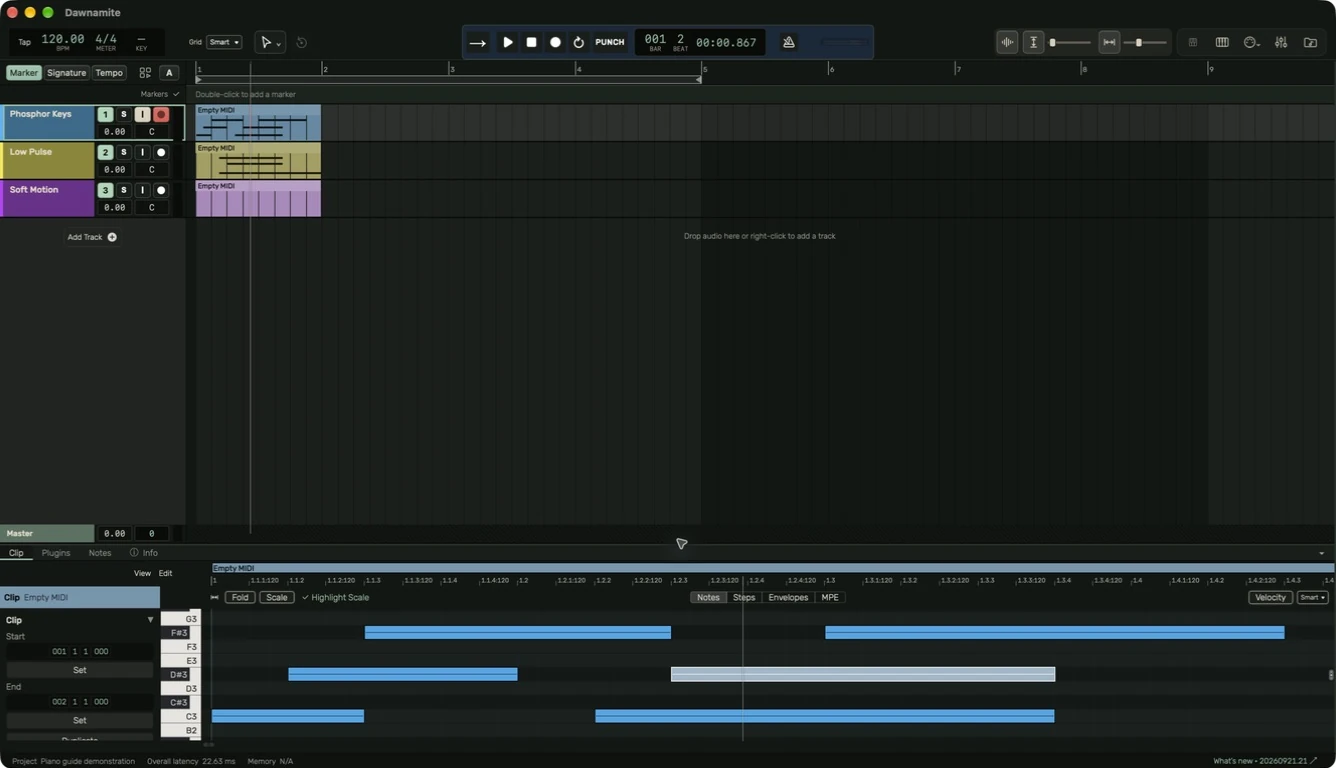
Create and open
With Pointer (1), drag across empty MIDI-track timeline space. Release when the preview reaches the desired end. Existing regions remain normal move/trim targets; the drawing gesture stops at neighboring region boundaries. Pencil (4) is another way to draw a region.
Select the region and choose Clip, or double-click it, to open the piano roll. The vertical keyboard represents pitch. Horizontal position represents time. A note's width is its length.
Edit a phrase
- Choose a grid such as 1/8 or 1/16 for the rhythm.
- Click empty space once to add a note. Drag before releasing to set its length; Escape cancels. The grid determines its start and initial length.
- Drag a note to change its pitch or start time.
- Drag a note edge to change its duration.
- Select notes before using quantize, duplicate or other note commands.
- Turn on Velocity in the editor toolbar when you want to edit note strength. It starts closed so the piano roll has more room.
The exact response to velocity depends on the instrument and patch. A low velocity is not necessarily the same as lowering the track fader.
Mute individual notes
Click a note, or Shift-select several notes, then press 0 while the note editor has focus. Muted notes have Chance set to 0 and remain available to edit. Press 0 again to activate them. Command+Z undoes the change. In this editor, 0 acts on notes; it does not mute the arrangement track.
Root and scale
Key in the header opens a panel for root and scale together. Apply commits both. MIDI regions follow the song unless they have their own scale. Highlight Scale gives scale pitches a clear colored row and key marker. Root notes use stronger shading and a full-width colored key, so you can locate each octave in normal, Fold and Scale views. The shading adapts to the selected theme, including light themes and Soundstream. Turning Highlight Scale off restores neutral rows without changing notes. Scale exposes the scale pitches across the MIDI range, with vertical scrolling. Existing out-of-scale notes remain accessible. Fold shows only pitches already used by notes; on an empty clip it falls back to the available scale or chromatic range. Turn Fold off to draw on unused pitches. Both Notes and Steps use these filters. Choose a clip-specific root or scale to override the song; choose Song in the clip's scale selector to follow it again. Choosing a scale guides pitch work; existing recorded audio is not automatically retuned.
Steps
Choose Steps for a pattern grid. Click or drag cells to draw steps. Drag an existing step up or down to change the selected Velocity, Chance or Repeat value. Shift-drag, or drag the right edge, to change length. Escape cancels the gesture. Length sets the number of steps; Step sets the time division.
All MIDI pitches are available by scrolling when Fold and Scale are off. With Scale enabled, every pitch in the scale is available across octaves. Click a piano-key row header to select it, then press 0 to mute or activate the notes on that row. The row uses the same Chance-based mute behavior as individual notes. There are no separate per-row mute or solo buttons, and no Add Row step is needed.
Clip and note settings
The left inspector separates Clip timing from selected Note values. Loop start and Loop length describe the repeating part; Start and End place the region on the arrangement. Set uses the current transport position for the corresponding boundary. Signature displays the arrangement meter at the clip. Change meter in the header or Signature lane.
Select a note to edit its labeled Position, Length, Pitch, Velocity, Fine tune, Chance, Repeats and Repeat curve. Drag numeric values vertically or click to type. A disabled field needs a suitable note selection. Advanced Pitch & Time, Transform and Generate sections start collapsed; expand a section when needed. Their operations use selected notes, or all notes when their explanation says so. Use Command+Z to undo an edit.
Several notes and controllers
Hold Shift and drag a selection rectangle, or use the editor's selection commands to work on multiple notes. Inspect the value lanes when editing MIDI expression or other supported controller data. MIDI channels and hardware mappings should agree with the receiving instrument.
Piano versus Clip
The Piano view in the header is a playback visualization. Clip is the note editor. Notes is a written project notepad. MIDI Keyboard is the playable software keyboard in the header. These four views have different jobs.
Guide for the macOS development build. For changes between versions, see update history. Public installers and final system requirements are not available yet.