Making music
Step Sequencer patterns
Build a row-based pattern, edit per-step expression and choose Song or Pattern playback.
In this guide
Open a pattern track
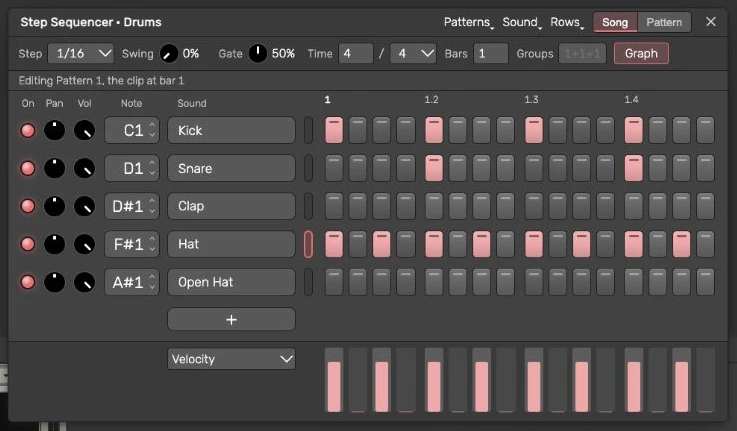
Click Step Sequencer in the header. It opens the selected Step Sequencer track, then an existing one if available. With none, it adds a Drums track with a first pattern clip and opens it. To program another MIDI instrument, right-click its track header and choose Open in Step Sequencer. Its first edit starts the pattern-track workflow.
The older Step Sequencer MIDI effect remains available in Library → MIDI Effects → Devices. Its Open button or overview opens the same window against device-held steps. This differs from both pattern clips and Clip → Steps. The status line tells you which target is being edited.
Choose and keep a pattern
On a pattern track, every pattern is a MIDI clip. The window follows the selected clip or the clip under the playhead. Patterns → New Pattern adds an empty clip after the last one. New clips last at least four bars, rounded up to whole pattern repeats. Duplicate This Pattern makes an independent copy with the same duration rule. Show Pattern chooses the clip to edit. A shared clip reports that other clips change with it; check that message before editing.
Drum patterns can fill an empty pattern or create a new clip. Keys Patterns requires a chosen Song Style and an editable pitched instrument. Read disabled-item tooltips for meter conflicts, a frozen track or recording restrictions. Sound chooses the target instrument; kit changes can remap matching drum rows. A row without a loaded Drum Sampler sample stays silent until you provide one.
For older device-held steps, Patterns → Move Steps to the Timeline converts them to a pattern clip. Before conversion, those steps play throughout the song and cannot loop by themselves in Pattern mode. Undo restores a completed conversion.
Add rows and steps
Use Rows → Add Row, the + menu's Empty Row, or Add Rows for All Pads when pads are available. The limit is 32 rows. The row's note arrows start with a semitone change; Shift-click starts with an octave change. Pattern-clip rows skip pitches assigned to another row; older device-held rows permit duplicates. Press its name to audition and select it; double-click to rename it. The activity light mutes or restores the row; right-click or Option-click solos it.
Click or drag step cells to turn them on or off. Shift-click accents a step; right-click removes it. Escape during painting restores the prior cells. Clear All Steps keeps rows; Remove All Rows removes them. Undo reverses a completed edit.
Row pan controls a Drum Sampler pad's pan. For other instruments it is disabled. Row volume controls a pad's level; on older device steps for another instrument it scales velocity. On a pattern track without a pad, that knob is disabled; use the Velocity graph. Row mute and solo belong to the current pattern on a pattern track.
Bars, division and beat groups
Bars sets the shown pattern length from 1 to 8, reduced when the meter and division would exceed 128 steps. Step offers 1/4, 1/8, 1/16, 1/32, 1/8T, 1/16T and 1/32T. Beat groups is visual grouping, such as 2+2+3 for 7/8. An invalid sum is refused and explained. Time-signature changes on a pattern track apply to every pattern, while the displayed pattern takes the new bar length.
Older device steps also offer Row Length from 1 to 128 steps. A shorter row repeats against the pattern; this option is absent for pattern clips. Swing delays alternating steps; Gate changes held duration. On pattern clips, each pattern keeps its own swing and note lengths. A completed change is undoable.
Drag the title bar to move the window. Drag its corner sideways to preview a bar-length change; release commits one edit. Escape, pointer cancellation or lost capture restores the prior geometry and length. Overflowing bars remain reachable by scrolling. Shortening hides steps past the end without erasing them.
Edit per-step graphs
Open Graph and select a row. Velocity changes note strength, Chance controls hit probability, Ratchet gives 1–4 repeats, and Shift moves timing. Only active steps can be changed. Pattern clips omit Pitch; change the row note instead. Their Shift range is ±20% of a step and Chance is rolled again on each playback. Older device steps add Pitch in semitones, allow Shift to ±50%, and use a repeatable Chance result. These graph values are MIDI pattern data.
Song or Pattern playback
Song makes Play follow the arrangement. Pattern makes Play or Space loop the current clip by itself. During song playback, the track plays that pattern instead of its arrangement clips. Pattern requires a pattern track and a current pattern, and is unavailable while recording or counting in. An unavailable control explains the reason in its tooltip.
Switching to Song, closing the window or deleting the pattern stops its standalone loop. The switch changes playback state, so it has no project edit to undo. Closing leaves the stored pattern intact. Save after useful edits and keep a Project Bundle before clearing rows. Read Plugins and MIDI editing.
Guide for the macOS development build. For changes between versions, see update history.