Editing
Piano view
Watch notes arrive at a full-width keyboard and adjust the view without losing space.
Open Piano
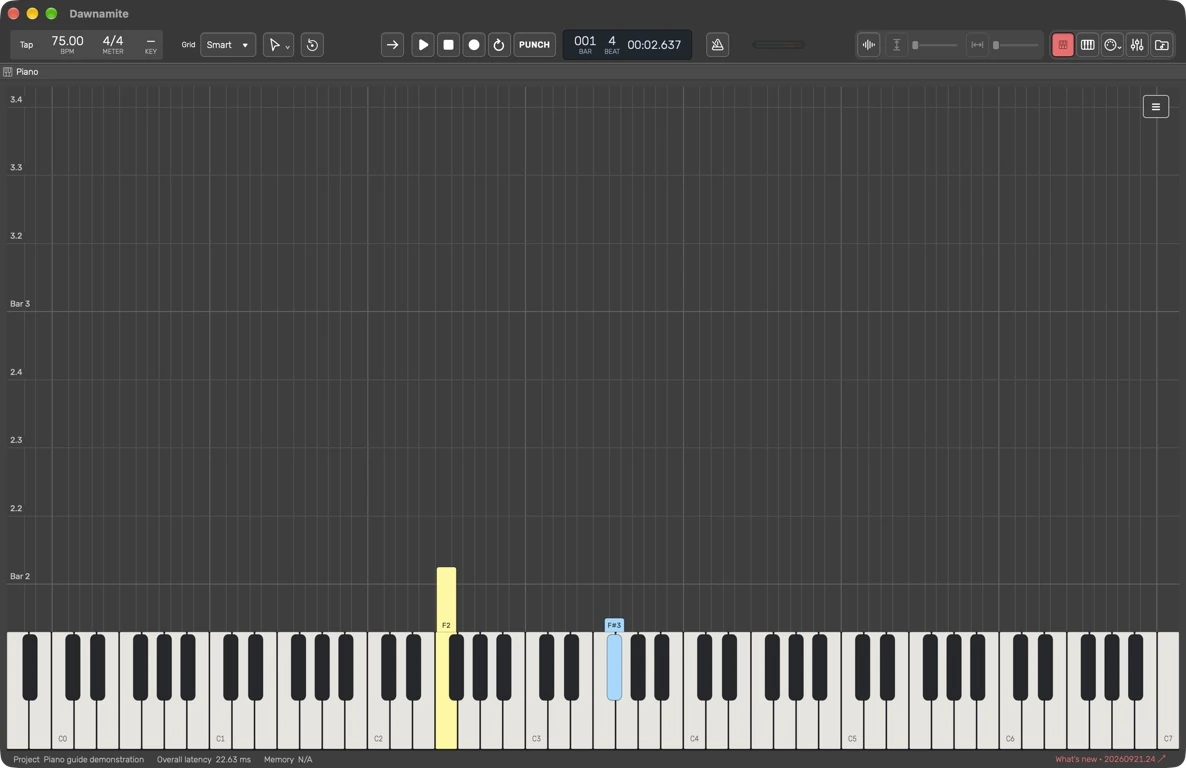
Click Piano in the header beside MIDI Keyboard. It opens a full workspace with a horizontal keyboard and falling notes. Click Piano again to return to the arrangement. With track headers on the right, the view buttons reverse order and Piano sits to the right of MIDI Keyboard.
This view displays notes from MIDI tracks. Use Clip → Notes or Steps to write and edit them. Use MIDI Keyboard to play the selected instrument from the computer keyboard.
Follow a phrase
Start playback to watch notes approach the keys. Track colors identify each part. The keyboard highlights arriving notes. Muted notes do not appear. Labels fit inside note blocks; very short or narrow blocks omit the label instead of overflowing it.
Open the settings overlay
Click the three-line Piano settings button at the upper right. The overlay starts closed and sits above the view. Click outside it, press Escape, or click the button again to close it. On smaller windows the settings scroll while the keyboard stays in view.
| Setting | What it changes |
|---|---|
| Keyboard | Show a 49-, 61-, 76- or 88-key keyboard. |
| Time Scale | The visible span of upcoming notes, from 1 to 64 quarter-note beats. A larger value shows more time. |
| Note Width | Width of falling-note blocks, from 0.5 to 2.0. |
| Transpose | Shift the display by −48 to +48 semitones. This changes the visualization only; it does not transpose the notes or audio. |
| Note Labels | Show small pitch labels when a block has enough room. |
| Tracks | Choose which MIDI tracks appear. Hiding a track here does not mute its audio. |
Adjust values quickly
Drag Time Scale, Note Width or Transpose up or down to change it. Click the value to type an exact number, then press Return. Values stay inside their supported ranges. The visual settings are stored with the project; save after arranging the view.
No notes visible
Check that the project has a MIDI track with notes near the playhead, and that its checkbox is enabled in Piano settings. An audio waveform does not become MIDI notes in this view.
Read the guides
Faint vertical lines separate pitch lanes aligned with the keyboard; octave boundaries are stronger. Horizontal lines show musical beats, with stronger lines labeled Bar 1, Bar 2 and so on. A label such as 2.3 means bar 2, beat 3. These lines follow time-signature changes. At a wider Time Scale, the display reduces the number of lines and labels to avoid crowding. Guides adapt to the theme and do not change playback or quantize notes.
Guide for the macOS development build. For changes between versions, see update history. Public installers and final system requirements are not available yet.