Editing
Arrange regions in time
Create, move, trim, duplicate and loop regions.
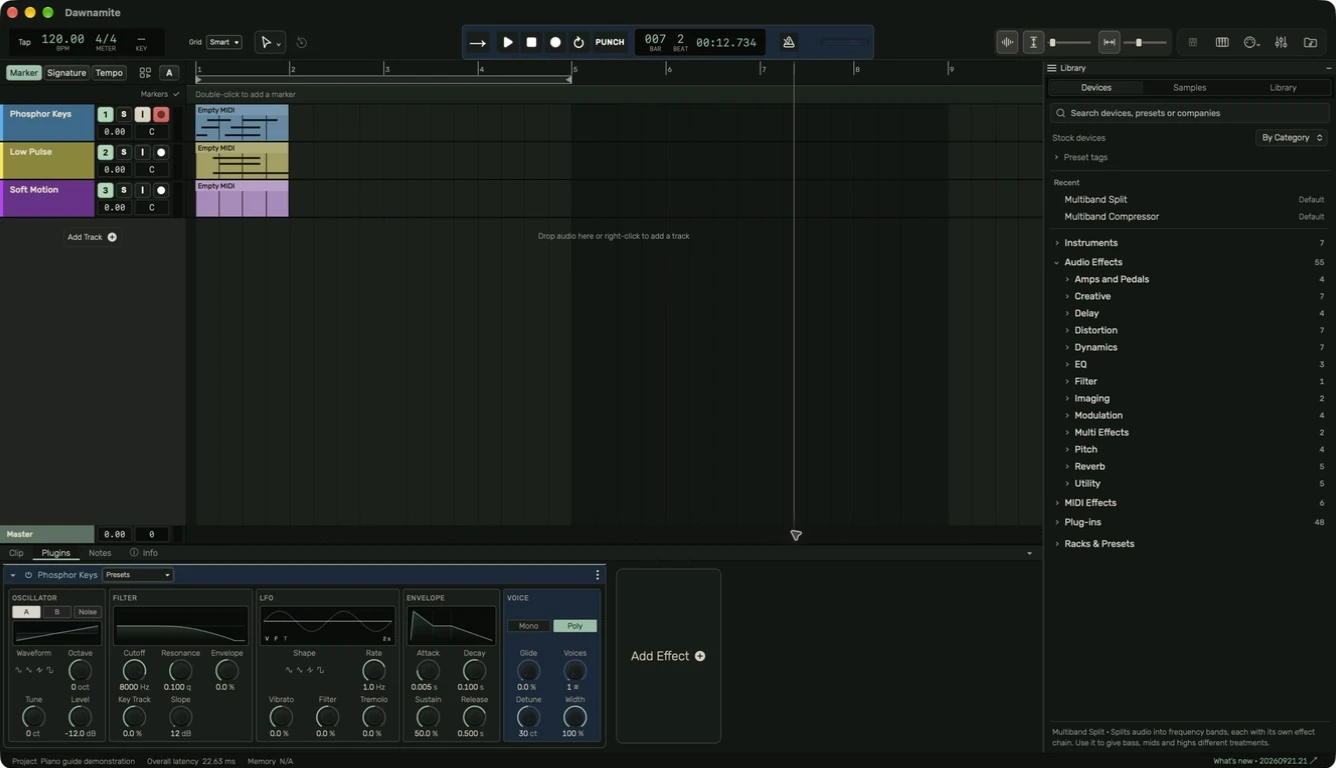
Create a region
On an empty part of a MIDI track, drag with Pointer (1). A preview shows its length; release to create it. The gesture is limited to the empty gap where it started. It does not draw over a neighboring region. Escape cancels. A click without a drag places the cursor.
Pencil (4) also draws regions on supported audio and MIDI lanes. On an audio lane it creates an empty audio region; it does not record a microphone. Use Recording to capture a real input.
Move and trim
Drag a region's body with Pointer to move it. Drag its edges to change its boundaries. Grid controls the snapping interval. Use Smart for a grid that follows zoom, a fixed note value for rhythmic precision, or Off for free placement.
Duplicate selected regions with Command+D. Command+L sets a loop around selected material. Command+E splits the selected time range, or the selected regions at the cursor when there is no range. Undo is Command+Z.
Select time instead of objects
Choose Range (2), then drag across one or more editable tracks. The highlight identifies the exact time span. Copy, split, mute or delete commands can act on that range. Check the highlight before applying an edit. Pointer keeps ordinary existing-region selection and movement behavior.
Keep the source
Trimming and moving an audio region edits the arrangement reference. Keep independent copies of source recordings and exported projects. Erasing a region with Eraser removes it from the timeline and retains the source sample in storage.
Guide for the macOS development build. For changes between versions, see update history. Public installers and final system requirements are not available yet.