Start here
Track headers & routing
Choose a track and understand its controls before recording.
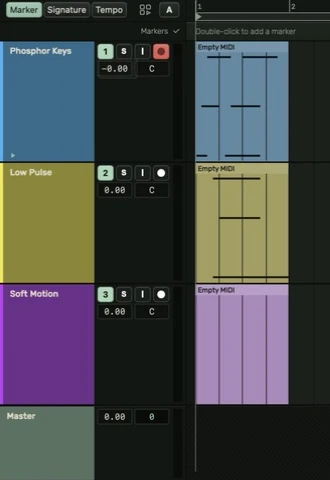
Selection and names
Click a header to select the track. Double-click its name, or use Rename Track in its context menu, to rename it. Track and region names are separate. Right-click the header for color, input, output and other track actions.
The colored name area identifies the track; the controls sit on a neutral surface. Drag the lower edge to resize it. At minimum height, labels are smaller and centered and some secondary controls are hidden. Enlarge the track when you need those controls.
Track controls
The numbered activator turns a track on or off. With a track selected in the arrangement, 0 toggles its mute state. S is solo. I controls input monitoring. The round record-arm control chooses whether that track will be recorded when recording begins. Selecting a track is not a substitute for checking record arm.
The volume field changes level, and the pan field places the signal left or right. A centered pan reads C. Adjust these while listening to the whole mix; a track's input gain at the audio interface is a different control.
Audio and MIDI inputs
Right-click an audio header and use Capture Audio to choose the device and channel configuration. Use Capture MIDI on a MIDI track to choose a controller and channel filter. Recheck arm and monitoring after changing an input.
Master and return tracks
Master is the output of the mix. Its volume changes the main output; Preview volume controls Library previews independently. Master has no added mute button. Returns let several tracks send to a shared effect. Master and returns stay in the lower dock; that section can scroll when there are many returns.
Groups, sends and output
Group related selected tracks from the track or app menu when arranging a larger session. In the mixer, choose a return destination for a send, then raise the send amount gradually. Sends currently operate before the channel fader. No Output disconnects the direct route while leaving configured sends in place.
Guide for the macOS development build. For changes between versions, see update history. Public installers and final system requirements are not available yet.