Editing
Arrangement tools
Choose a tool by name or use the current number shortcuts.
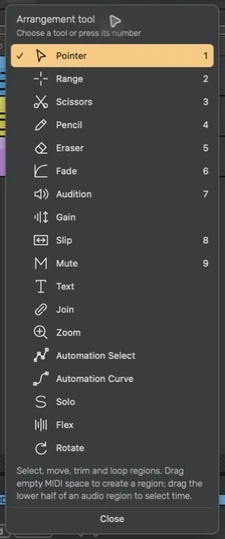
Primary tool only
There is one arrangement tool selector. Command is available for normal shortcuts; holding it no longer temporarily selects a secondary tool. Number shortcuts work outside text entry, dialogs and the software keyboard's note-entry context.
| Key | Tool | Use |
|---|---|---|
| 1 | Pointer | Select, move and trim existing regions; draw in empty MIDI space |
| 2 | Range | Select a time interval across tracks |
| 3 | Scissors | Split at the clicked position |
| 4 | Pencil | Draw a new region with a live preview |
| 5 | Eraser | Highlight a region and remove it on release |
| 6 | Fade | Drag to set an audio fade; Shift-drag changes its curve |
| 7 | Audition | Hold to play from the clicked position; release to stop |
| 8 | Slip | Move content inside a region while keeping its outer position |
| 9 | Mute | Toggle a region's mute state |
| 0 | Track mute command | Toggle the selected track, without changing tools |
Tools without a number
Gain changes an audio region's gain. Text renames. Join combines compatible MIDI regions. Zoom focuses on a dragged time span. Solo toggles the clicked region's track solo. Rotate shifts looped content inside fixed region edges. Flex changes audio timing by moving a warp anchor inside the region.
Automation tools
Automation Select selects and drags points. Automation Curve bends a segment between points. Select a track and choose one of these tools to reveal its automation. A curve needs two points at different values before bending has a visible effect.
Watch the gesture
Pencil, range, fade, gain and warp gestures provide feedback while you drag. Escape cancels an active gesture. Undo reverses a completed edit. Unsupported targets do not become move gestures when another tool is selected.
No legacy workspace keys
The old Shift+number page shortcuts are removed. Use the header for Piano, Mixer, Library, MIDI Keyboard and tempo. Shader Toy and the separate tap-tempo page are not part of the workspace.
Open tools from another view
The Arrangement tool selector remains available in Piano and Mixer. Choose a tool to return to Arrangement with that tool selected. Escape closes the menu without changing views. The selector needs an open project.
Guide for the macOS development build. For changes between versions, see update history. Public installers and final system requirements are not available yet.