Start here
Your first project
Make a short piece, from an empty project to a saved mix.
Before you start
This guide follows the current macOS development build. Dawnamite is not publicly released; controls can change between builds. There is no public installer or release date yet. See Updates for changes to this guide and the app.
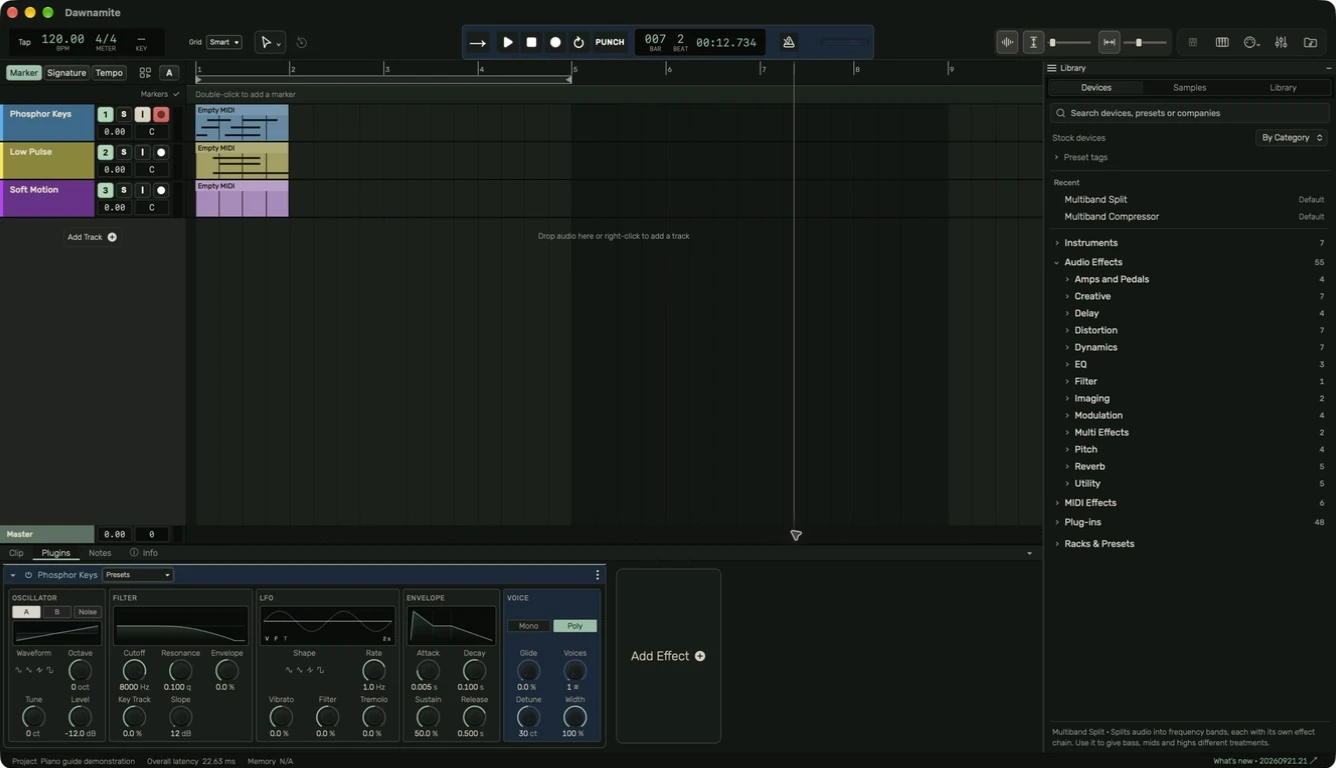
A project holds your tracks, clips, instruments, effects and settings. A track is a horizontal lane. A region is a piece of audio or MIDI placed in that lane. The vertical playhead shows where playback is happening.
Make a small project
- Open Dawnamite and choose a new project from the project chooser.
- Set a comfortable tempo in the BPM field. Leave the meter at 4/4 for a first exercise.
- Add a MIDI track. Open MIDI Keyboard in the header and use Add Piano if you want the bundled piano in your development build.
- Select Pointer (1) and drag across empty space on the MIDI track. Release to create a region. Open Clip to draw or edit notes.
- Press Space to play. Press Space again to pause, or use Stop.
- Open Plugins on the selected track and add an effect. Adjust one control at a time and compare with the device bypassed.
- Save with Command+S. Make an independent Project Bundle through File → Export before experimenting further.
Choose your next step
For a microphone or guitar, start with Audio setup, then Recording. For a keyboard or pad controller, start with MIDI setup. You can also drag an audio file into the arrangement without recording.
Get help while you work
Turn on Info in the bottom panel, then hover or focus a control. You will see a short explanation and a few relevant commands. Read the full guide opens the website topic for that area. Help & Documentation in the app menu opens this guide, MIDI setup, audio setup, plug-ins, updates or licenses.
Guide for the macOS development build. For changes between versions, see update history. Public installers and final system requirements are not available yet.